
Getting Started
How to play
You've made your first quiz, now you want to play it for your next classroom activity! This post will show you all you need to know when playing a QuizWhizzer game, either live in a classroom environment or remotely.
Start a game
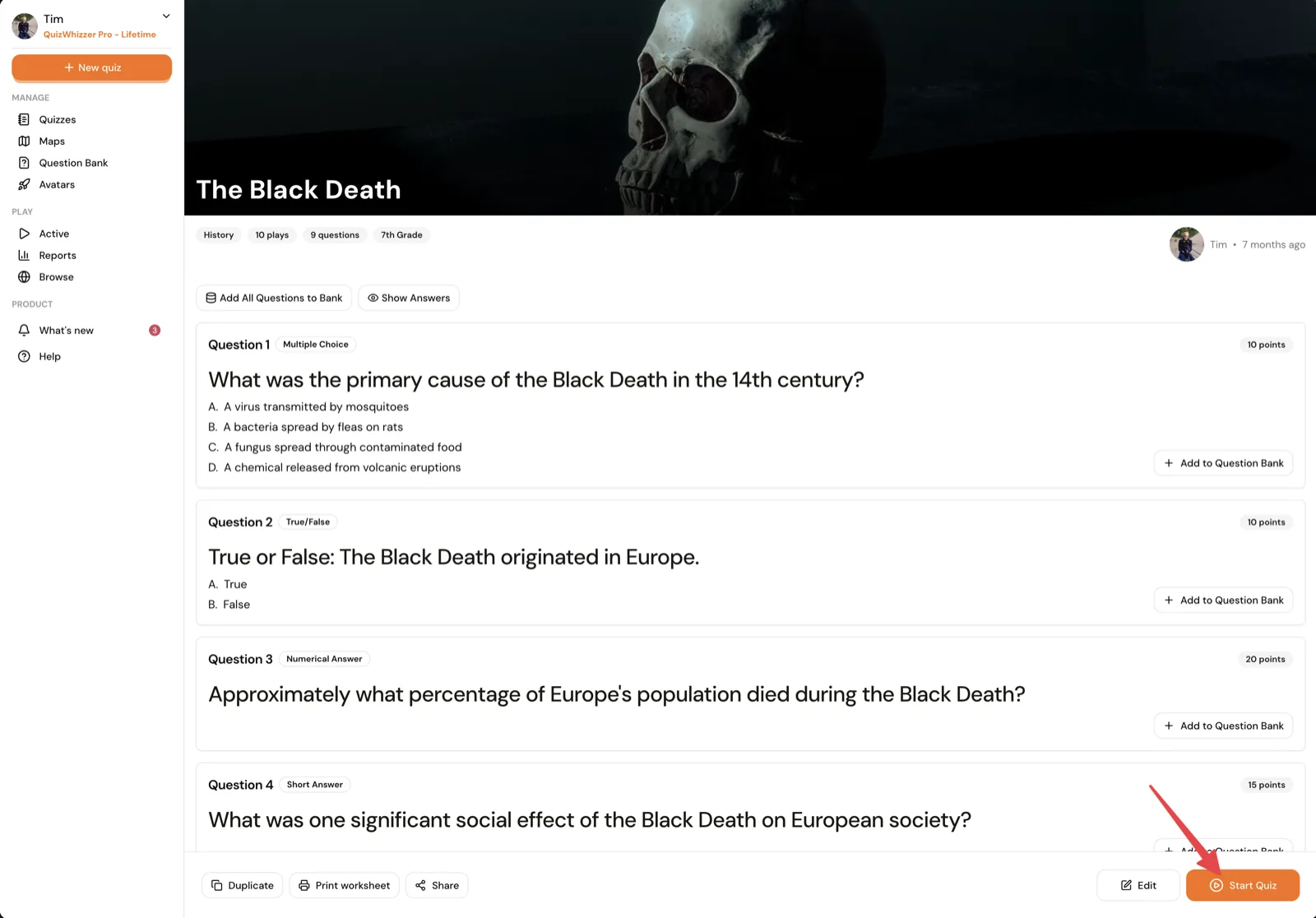
Click on the quiz you would like to play to open the detailed view. You will then see a start button in the bottom right, click it to start the quiz:
Setting it up
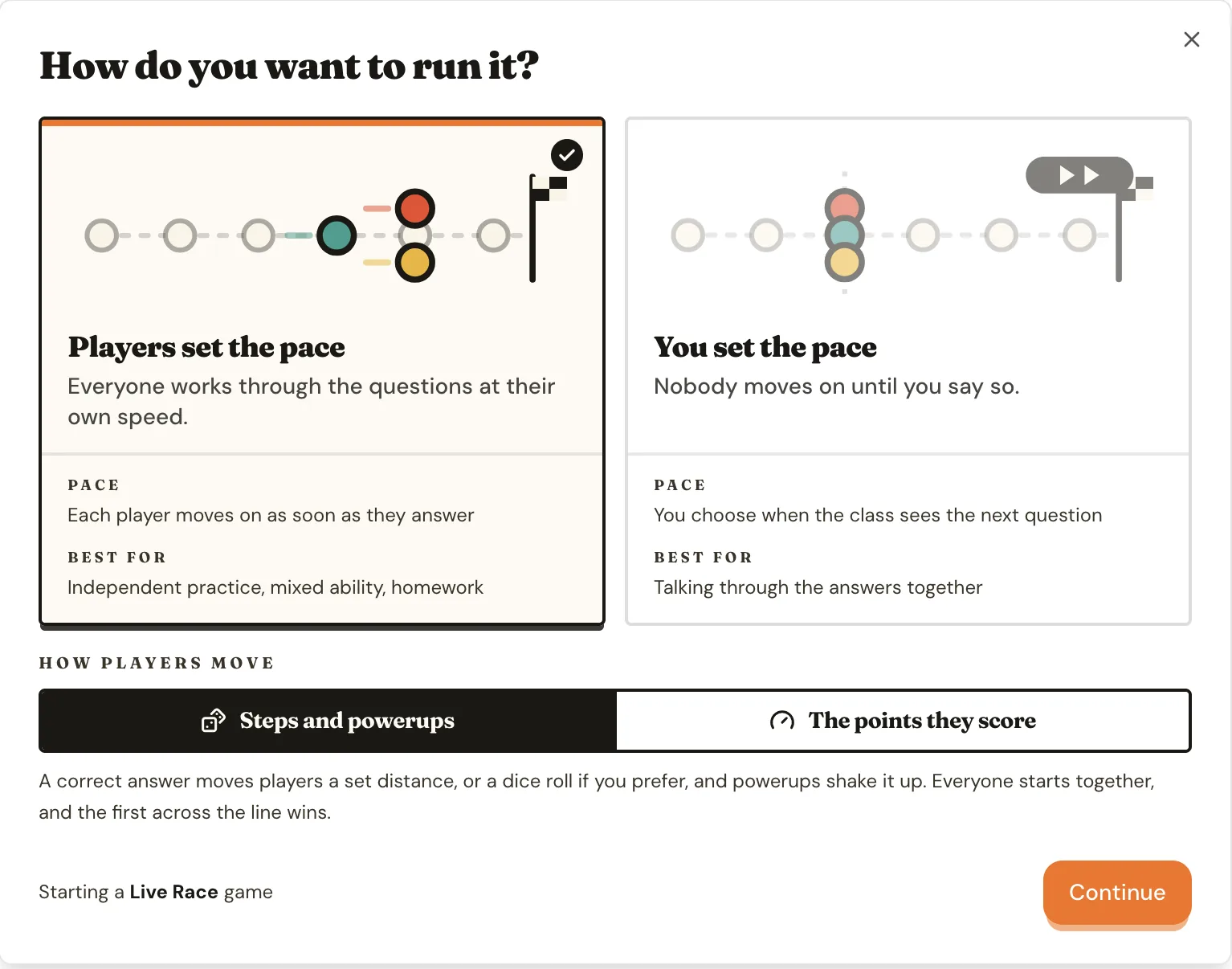
You will then be asked two questions about how the game runs.
How to win:
- First to the finish - a correct answer moves players a set distance, or a dice roll if you prefer, and powerups shake it up. The points are not counted, and the first player to reach the end wins.
- If a player reaches the end (last space on the map), they will finish the game and their finish place will be locked. If there are still questions left, the player can continue them for academic purposes, they won't count towards their score.
- Powerups and random movement are both optional, and they give weaker students a way to win the race.
- Highest score - the distance comes from the score, so a question worth more points moves a player further. A perfect run always reaches the end. In a host-paced game, a correct answer earns up to 20% extra points for speed, so a fast player can reach the end after missing a question or two.
- Party - there's no finish line. Players lap the map earning coins to buy golden brains, with duels, mini-games, a shop and a final boss along the way. Most brains wins. Party games are host-paced. Learn how party mode works.
Pacing:
- Self-paced - questions go to each player's device, and everyone works through the quiz at their own speed.
- Host-paced - the question goes up on your screen for the whole room. Everyone reads the same question at the same time and answers on their own device, so you can talk through the answers together before moving on. A projector or a TV works best.
The two answers are independent, so a host-paced game can be won by reaching the end and a self-paced one on score.
Now once you have decided how the game runs, press the start button to move to the map selection screen.
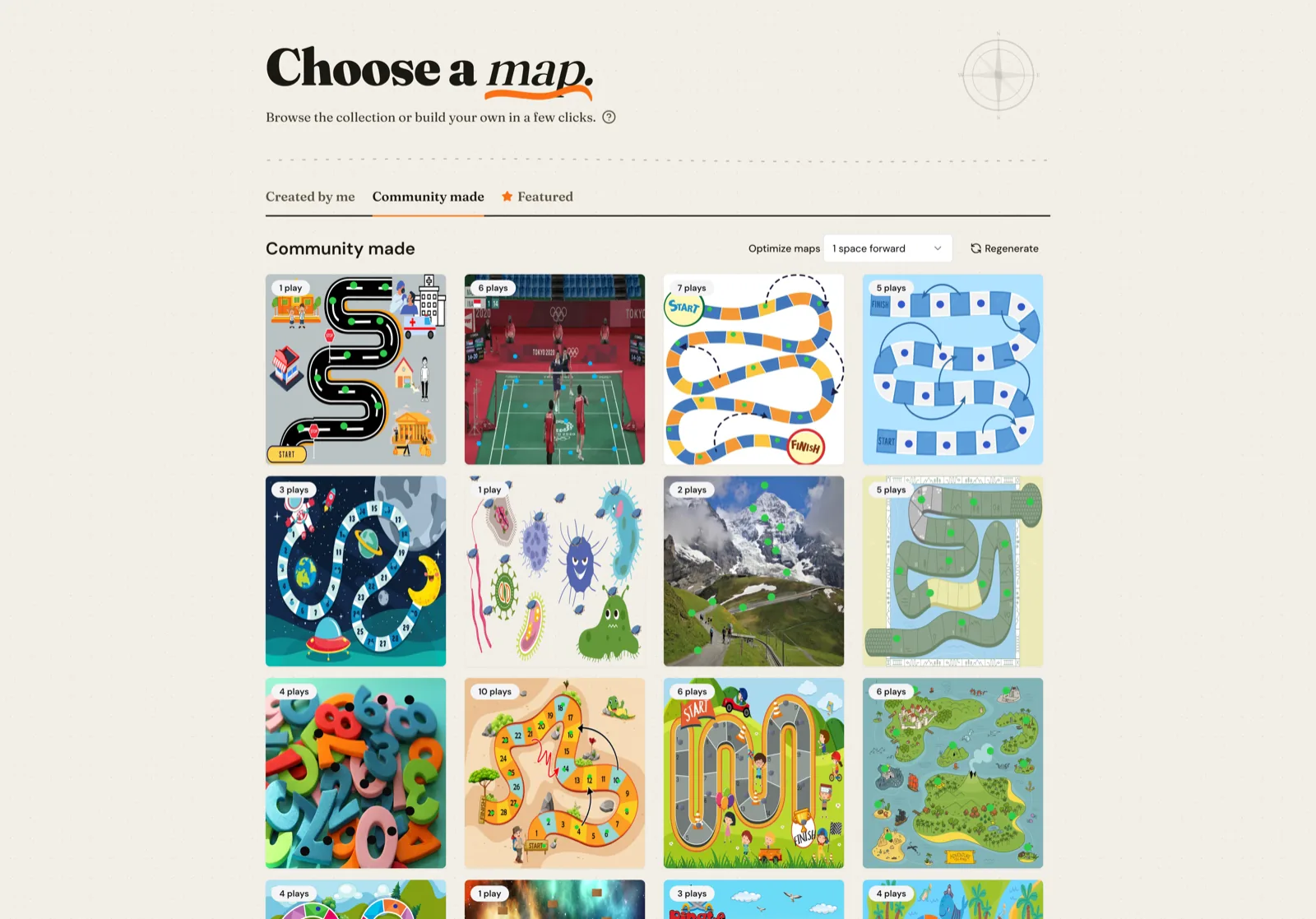
Maps are the race setting for your game. Players will race each other across the map while answering questions. If you click on the “Community made” tab you can browse all the maps created by QuizWhizzer members. This tab also fetches maps based on the number of questions in your quiz. Where players move in steps you can choose the movement to optimize the maps by.
Once you’ve selected the map you want to use, you will be taken to the launch screen where you can choose the settings for the game.
Pro tip: If you start the same way often, save those launch settings as a preset. Next time you can pick it from Start from a preset? and skip redoing the setup — including the mode.
When in live mode, the recommended number of spaces forward will be automatically selected (highlighted below), but you can change this if you want. In other modes, the movement is based on the score such that perfect score will always mean the player reaches the finish, so you can't change it there.
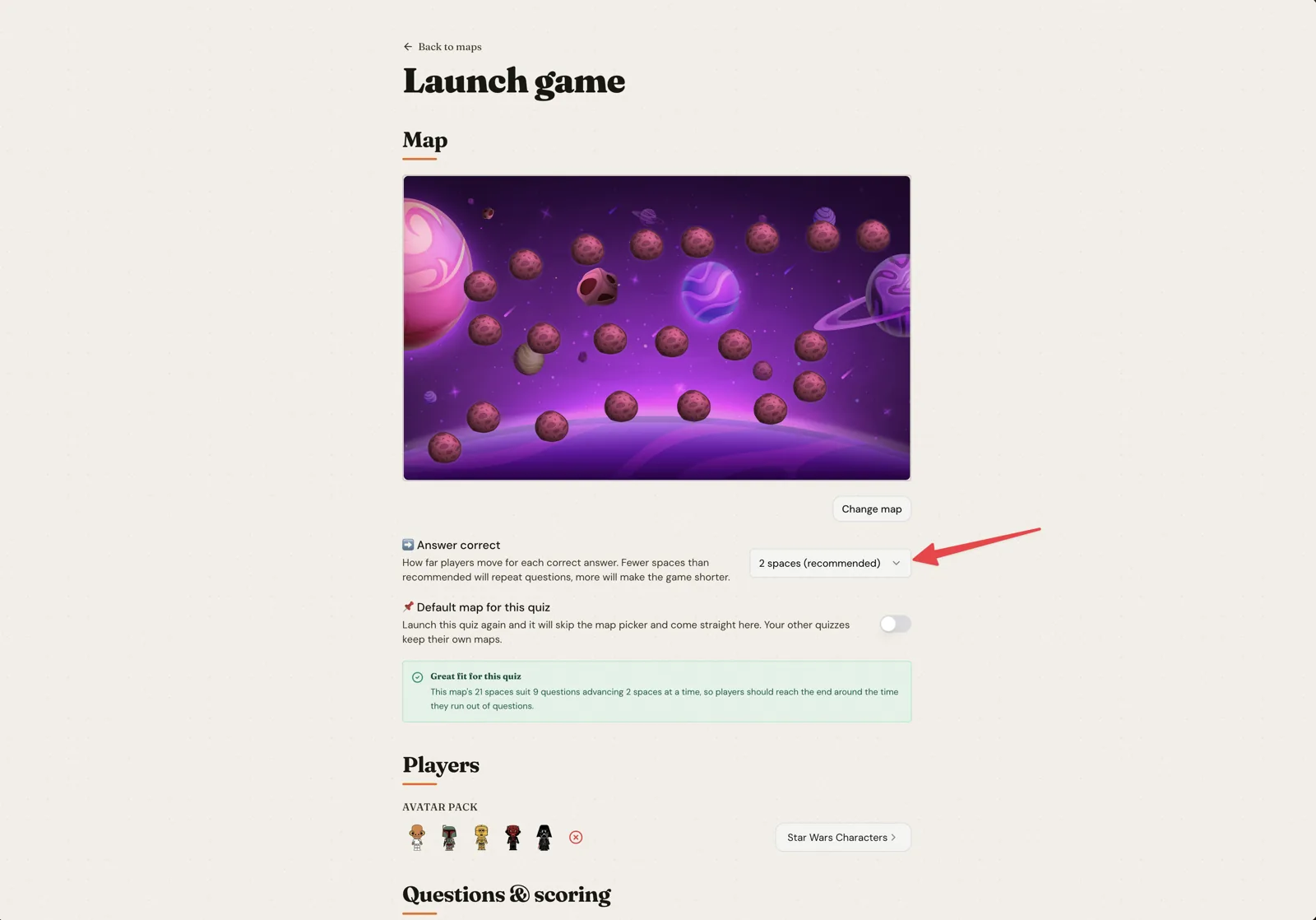
💡 Where players move in steps, make sure to choose a map that isn't too short so players need to answer all questions to win.
Pro members can choose custom avatars for the game, this is a fun engagement feature to allow students to select a character to use.
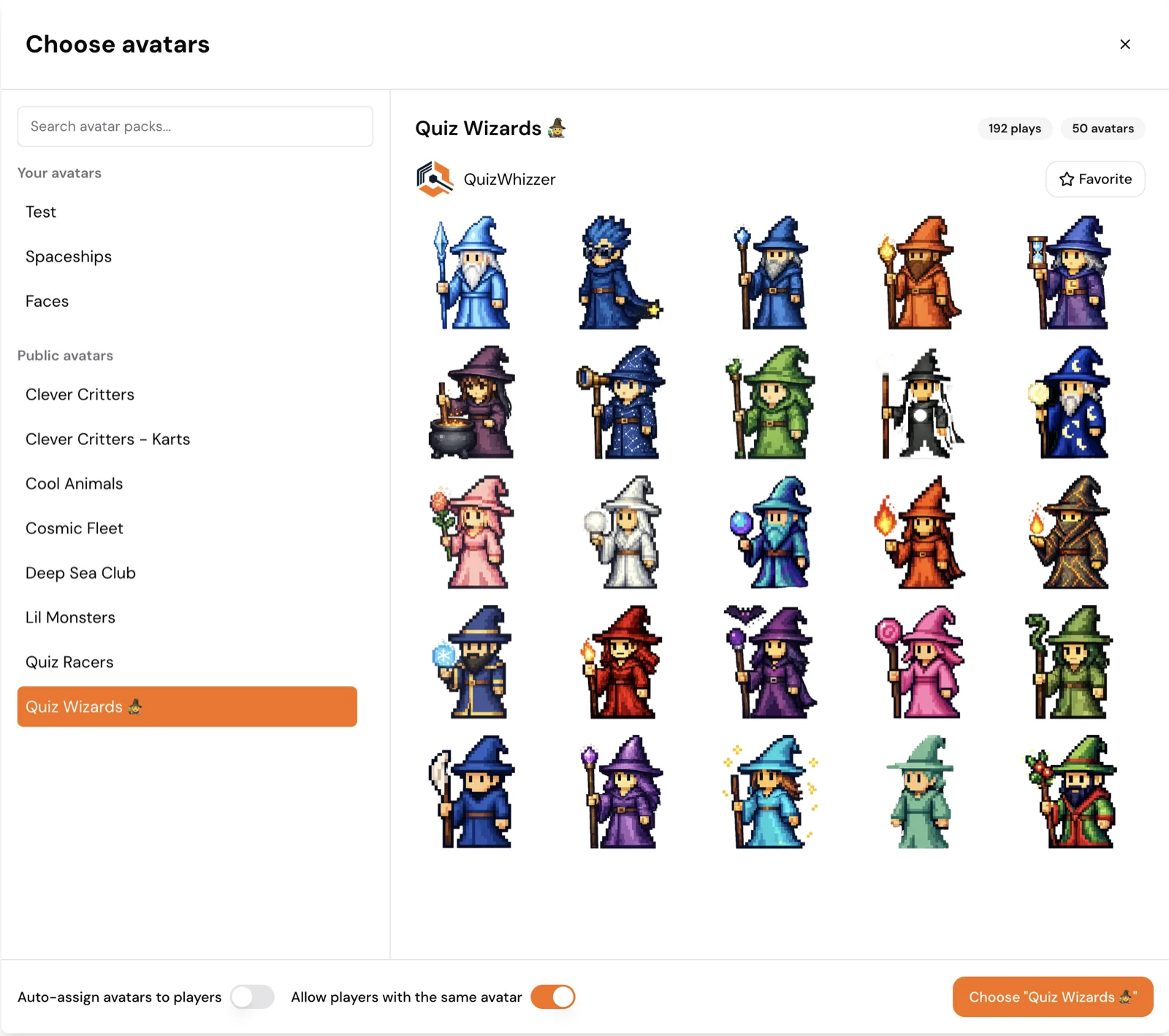
There are quite a few game settings you can customize, so we won’t cover them all here (you should see explanations below each one on the screen). We recommend you explore them at your own pace to avoid getting overwhelmed!
A few notable options:
- ⚡ Powerups (only where players move in steps)
- Powers are placed randomly on the map (represented by a rotating question mark). If a player lands on one, they will get a powerup based on their current position - players who are further ahead are more likely to get defensive powerups, while players lagging behind are more likely to get attack powerups.
- Learn more about the different powerups here →
- ⏱️ Time penalty
- When answering a question wrong, you can slow down players with a time penalty! This is more relevant for a self-paced game or if you have a time limit set on homework. The option is not available in a host-paced game, where you set the pace anyway.
- 🎯 Maximum attempts
- If you set this greater than 1, players will be able to try again after they submit an incorrect answer.
- Player will get 50% credit for two attempts, 25% credit for three attempts and 0 for more than three attempts.
Time limit ⌛
If you launched homework, you can also choose a time limit from this screen. As you would expect, this works on an individual level for each player.
If you launched a self-paced game, the time limit can be set from the active game screen. This is because this timer is more advanced and can be adjusted in real time! So in this case everyone goes off the timer on the central screen.
Once time runs out, it will automatically stop the player from answering more questions.
Active Game
Now you've launched the game, it's time to share it with your students! You will be shown a lobby screen giving you the opportunity to wait for everyone to join.
In a live game, self-paced or host-paced, there must be at least one player before you can press the start button.
In the screenshot below, the number in the red box is the access code. This can be entered by students going to https://quizwhizzer.com/play. This is good for in-person settings to provide an easy way to join the game without some complicated URL to type in. To make it even easier, we now provide a QR code to scan to join the game directly when in person!
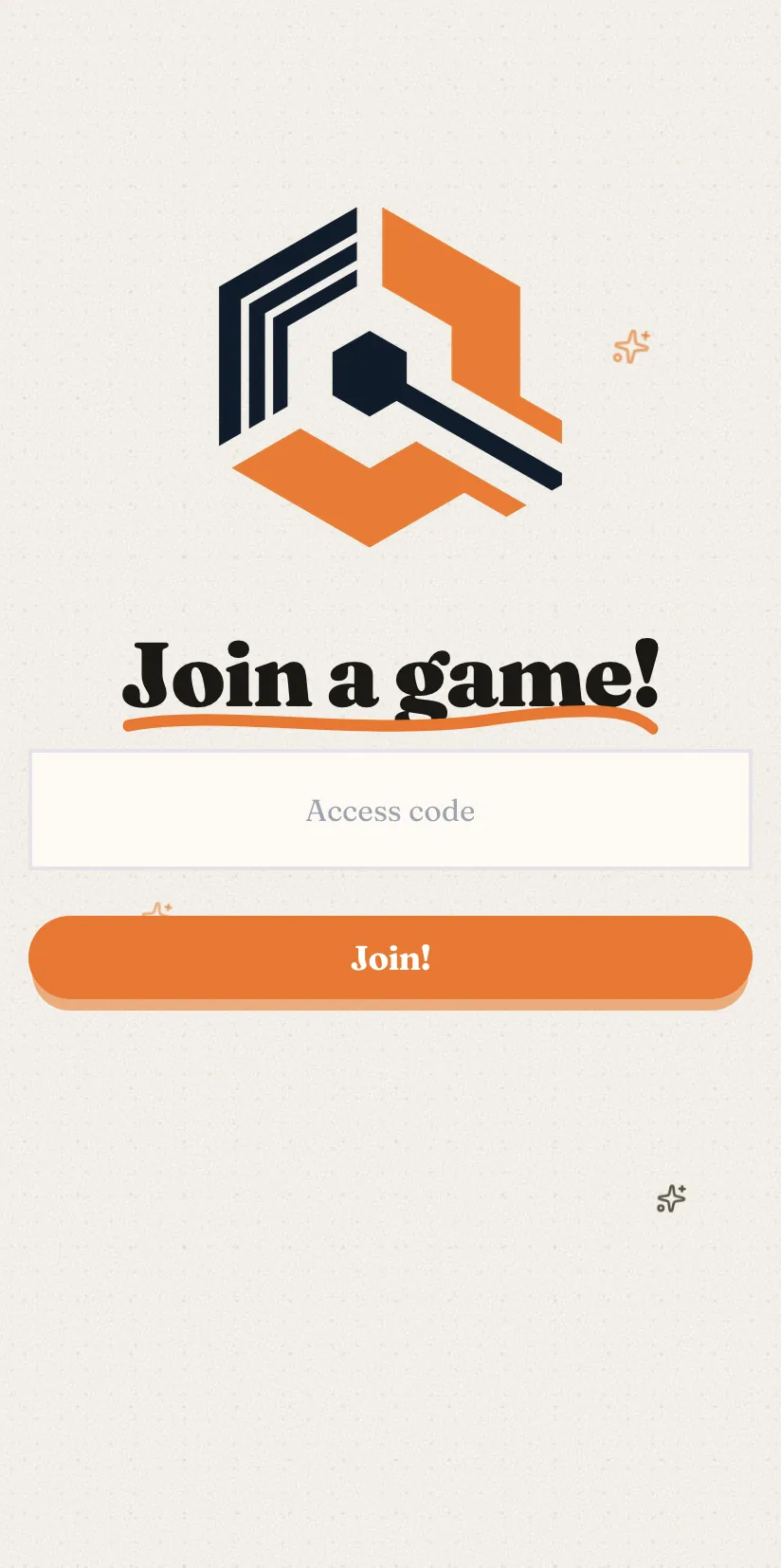
For remote settings, the link in the blue box can be shared directly with students (e.g. via a messaging platform) so by following the link they will be brought directly into the game where they can enter their nickname.
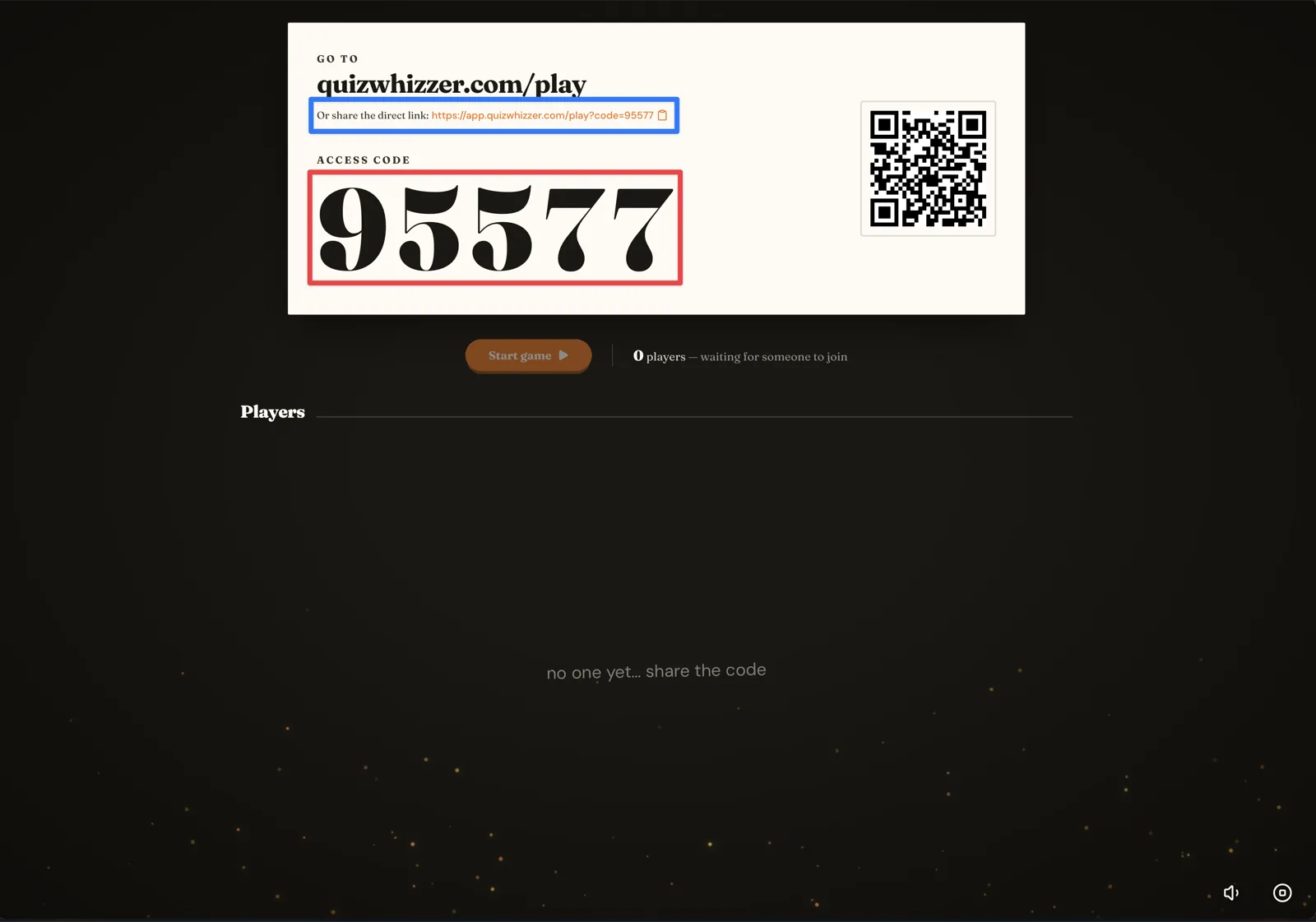
As players join, you will start to see their avatars appearing on the screen. By default these are uniquely coloured circles, unless you have an avatar pack enabled.
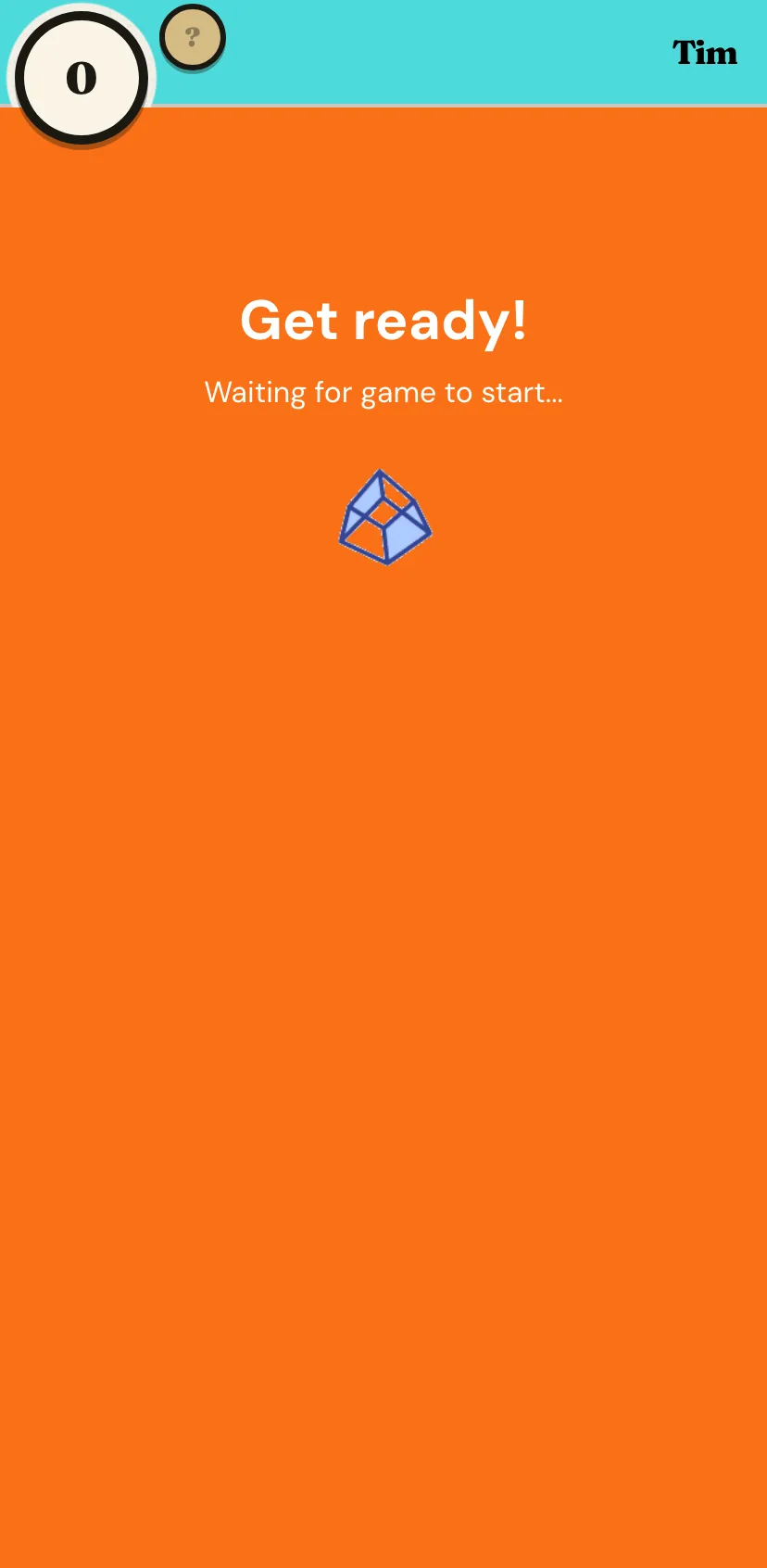
Waiting for the game to start
Start the game
Once you start the game, players will be presented with the first question.
Here is an annotated view of the player interface:
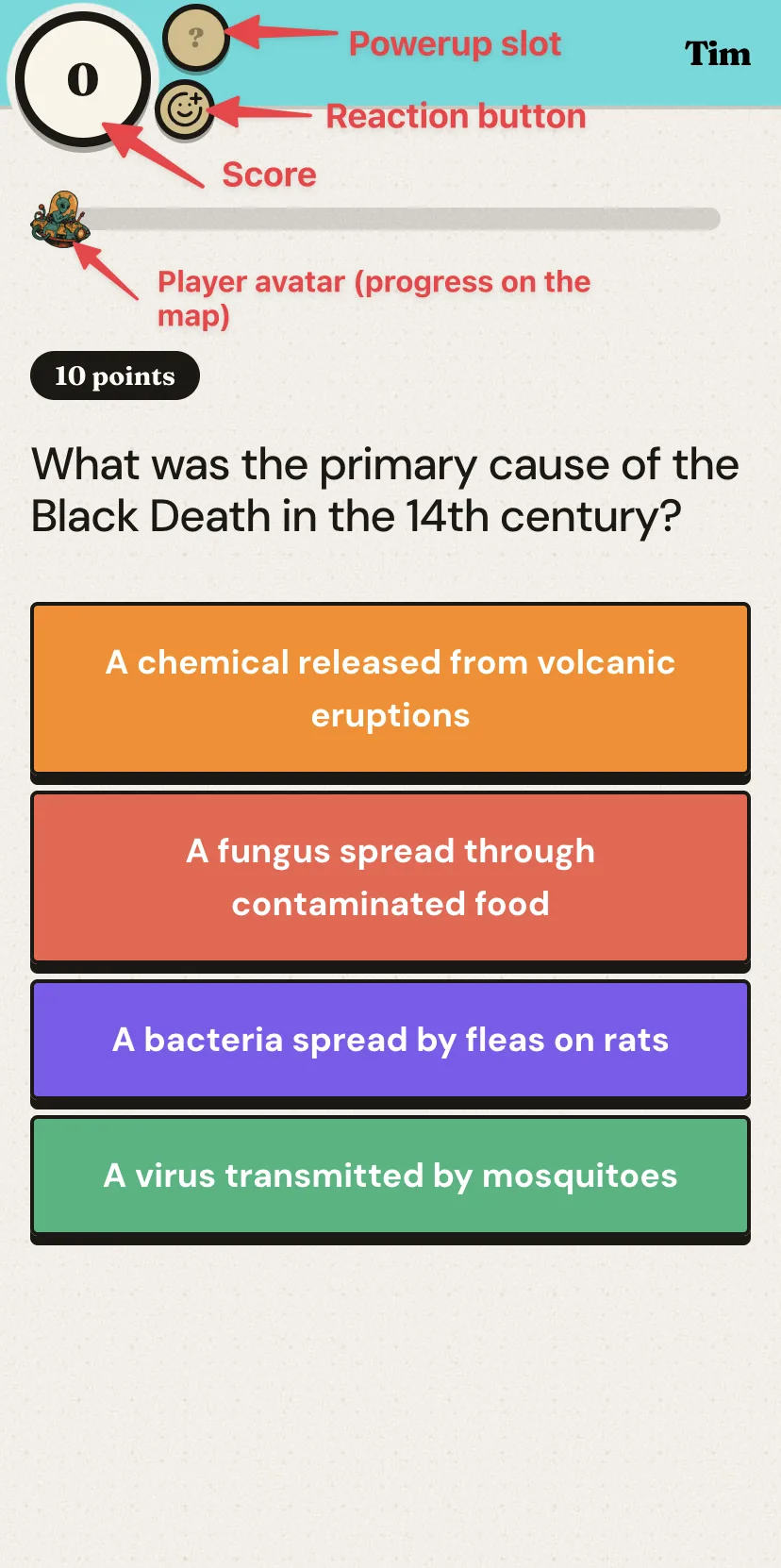
Here's a quick video of what it looks like answering when the first player to reach the end wins:
The player also gets instant feedback if they got the answer right or wrong. This is a huge benefit to online learning, as opposed to working from a worksheet.
Player movement when the points decide it
These modes are a little different, on shorter maps it might take a few questions before the player can move forwards (as each space would be worth more points). This is indicated through a fuel gauge at the top left:
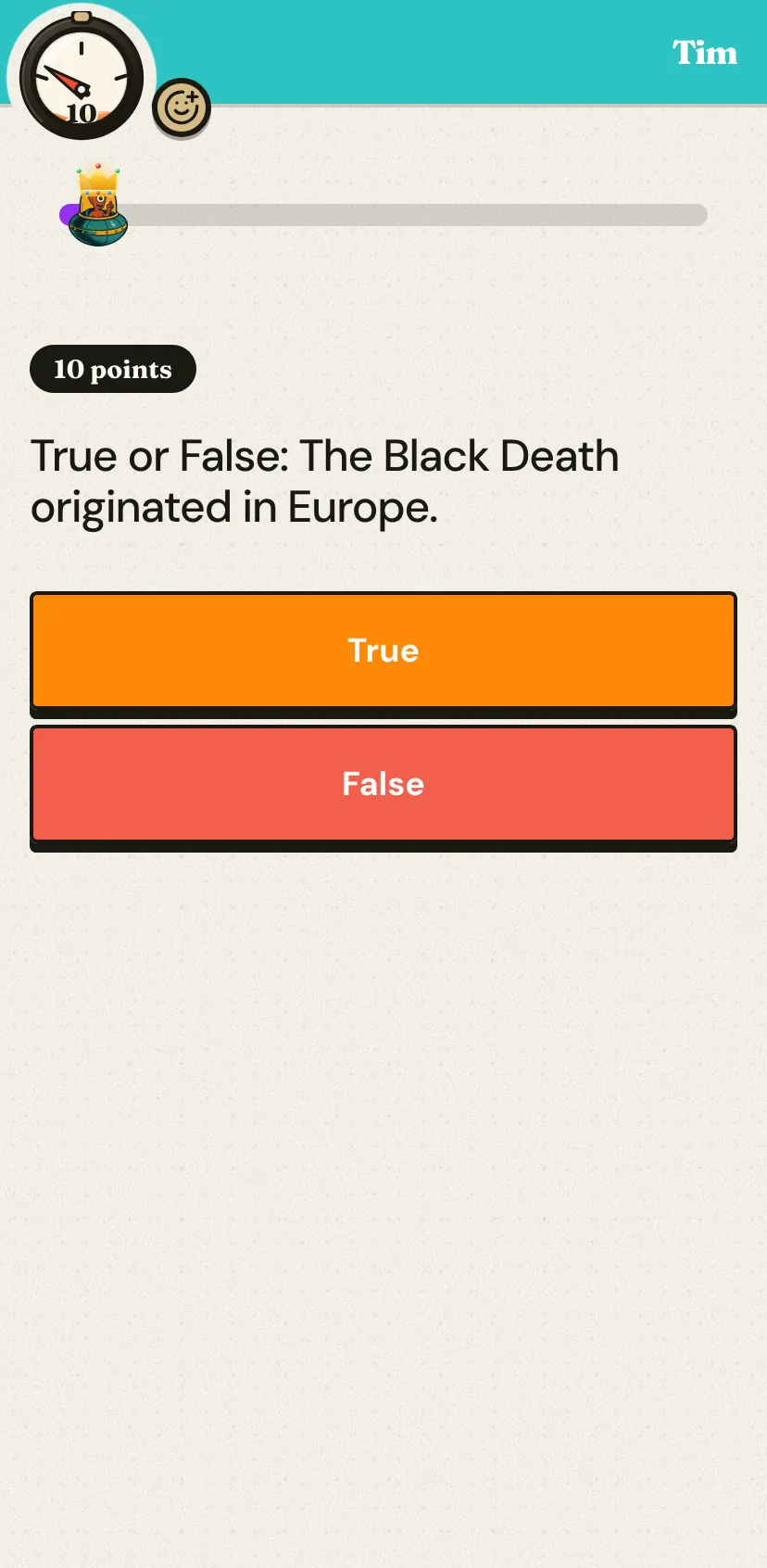
Points earned from correct answers will fill up the fuel gauge. When it reaches full, it will glow and your avatar will move forward!
The game screen
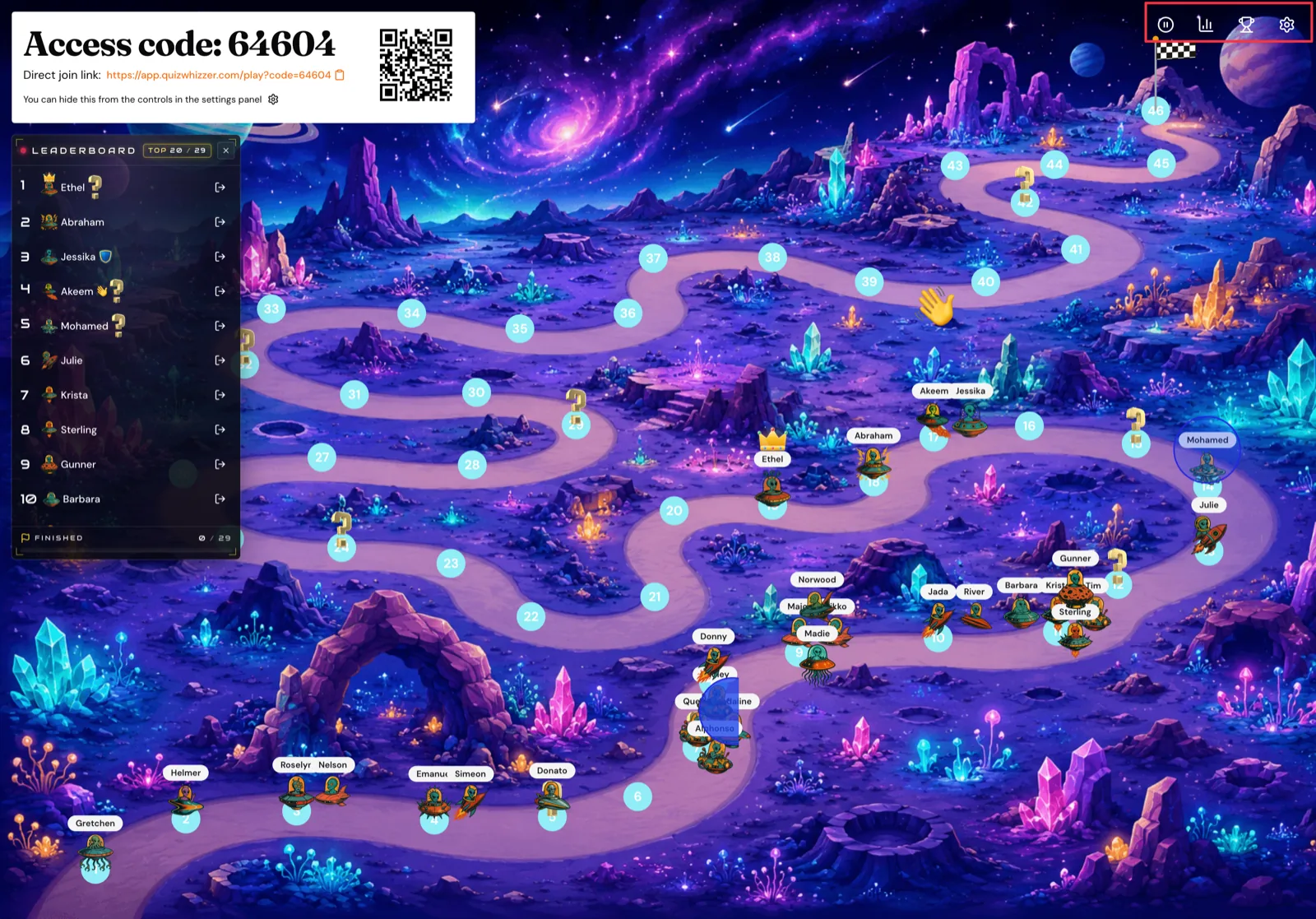
Usually if everyone is playing at the same time, the game host will have the map projected on a central screen for everyone to see.
Game settings
You will see a few buttons at the top right of the screen. From left to right, you can pause/resume the game (when paused this stops all players from answering), view a live report (you will see player answer submissions in real-time), view the results (winners podium) and finally the settings. The settings allows you to change the presentation of various elements on the map screen as well as adjust the game timer if you're playing a game that moves in steps (the timer will not show on homework as it cannot be adjusted).
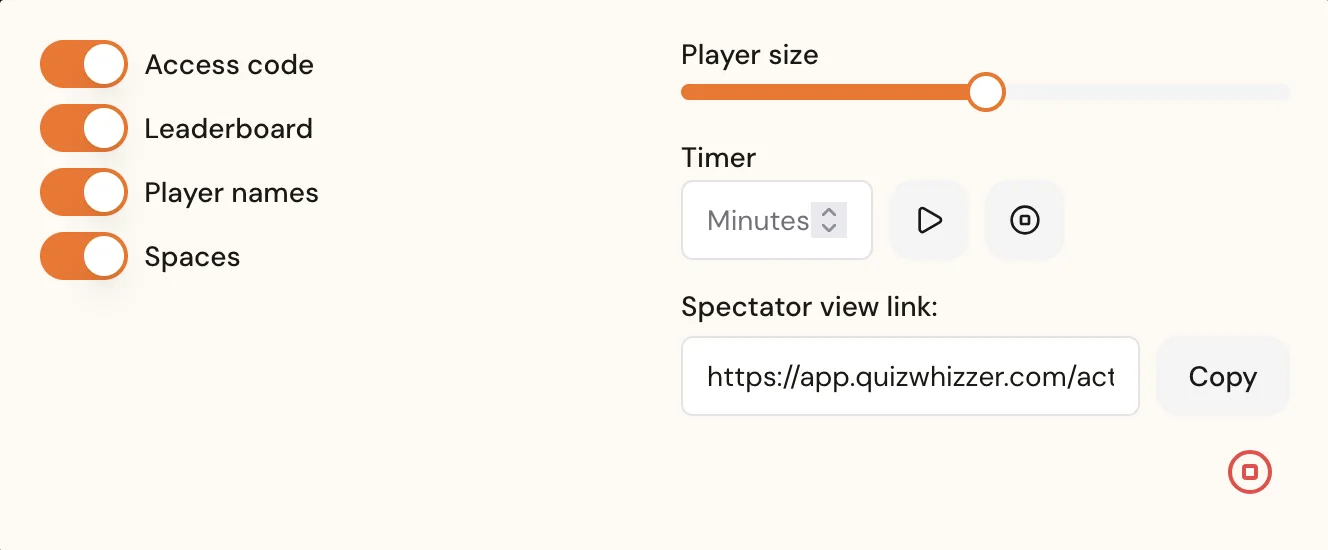
Here's what you can adjust:
- Player avatar size
- Toggle visibility of the leaderboard
- Toggle visibility of player names
- Toggle visibility of spaces
- Toggle visibility of access code (recommended to hide after players have joined for more screen real estate).
- Turn music on/off
Additional settings:
- Adjust the game timer (only where players move in steps)
- Spectator view link - allows you to share the live view with anyone to watch on another screen.
- Red stop button will stop the game
Leaderboard
The leaderboard will show the top 20 players by their ranking. Where players move in steps it doesn't show the scores, since these are separate from the position and do not determine ranking. You'll be able to see powerups, and you can also kick players from the game through this.
(Note: to kick players that are not on the leaderboard you can click on their avatar on the map)
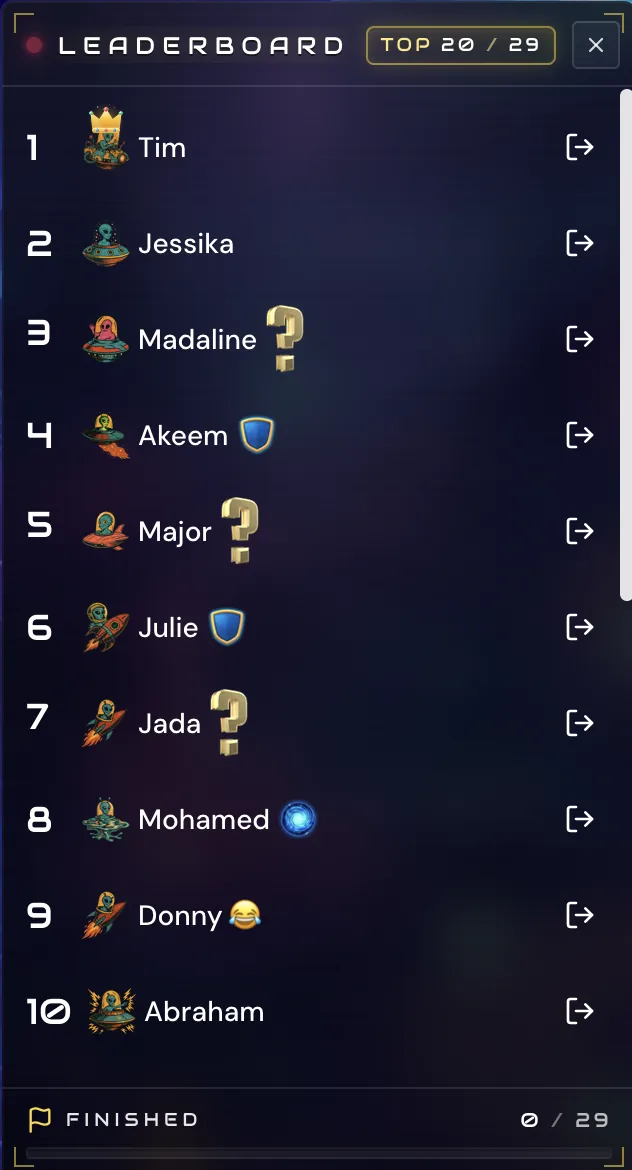
To hide the leaderboard, click the close button on the top right of it. You can bring it back at anytime by clicking on the settings at the top right, then toggle leaderboard.
Tip: Viewing players on a space
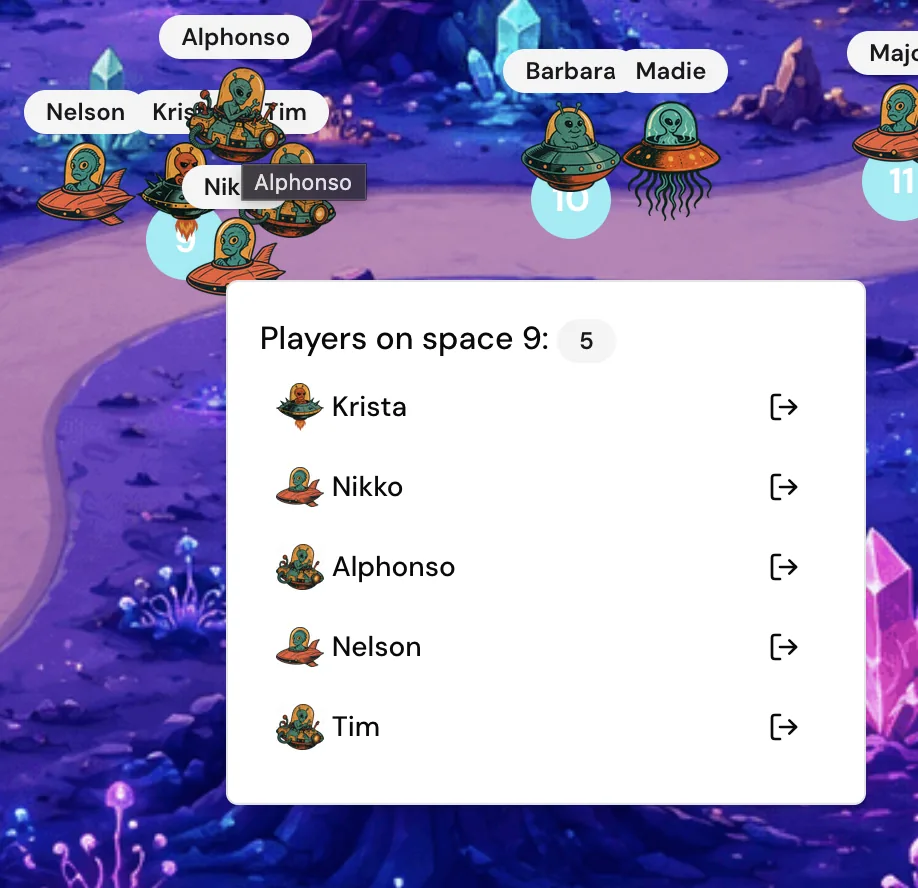
The game will only show up to 7 players on a space. You can hover over them to view the full list of players on that space.
Game Results
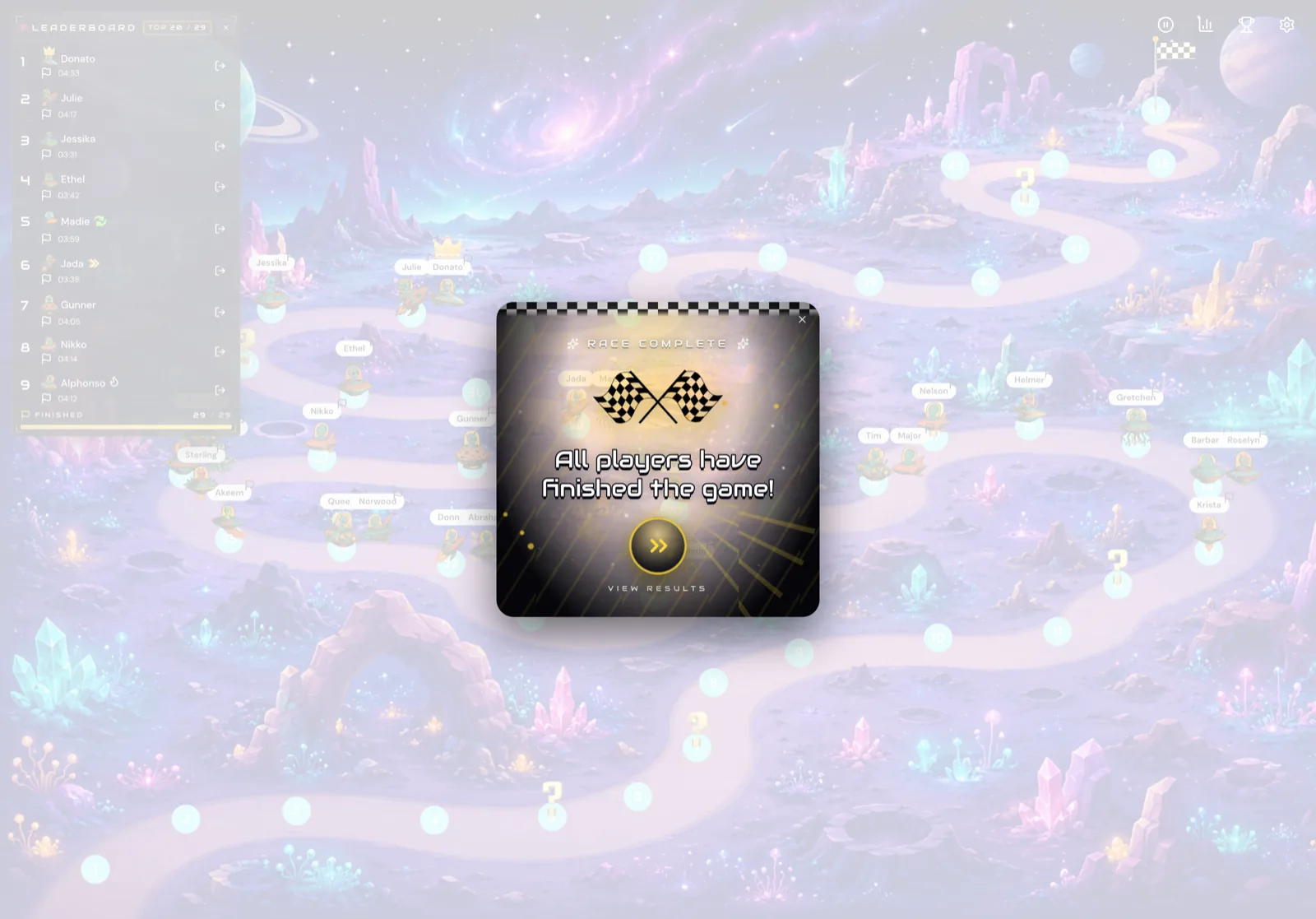
A modal window will pop up to tell you when all players are finished.
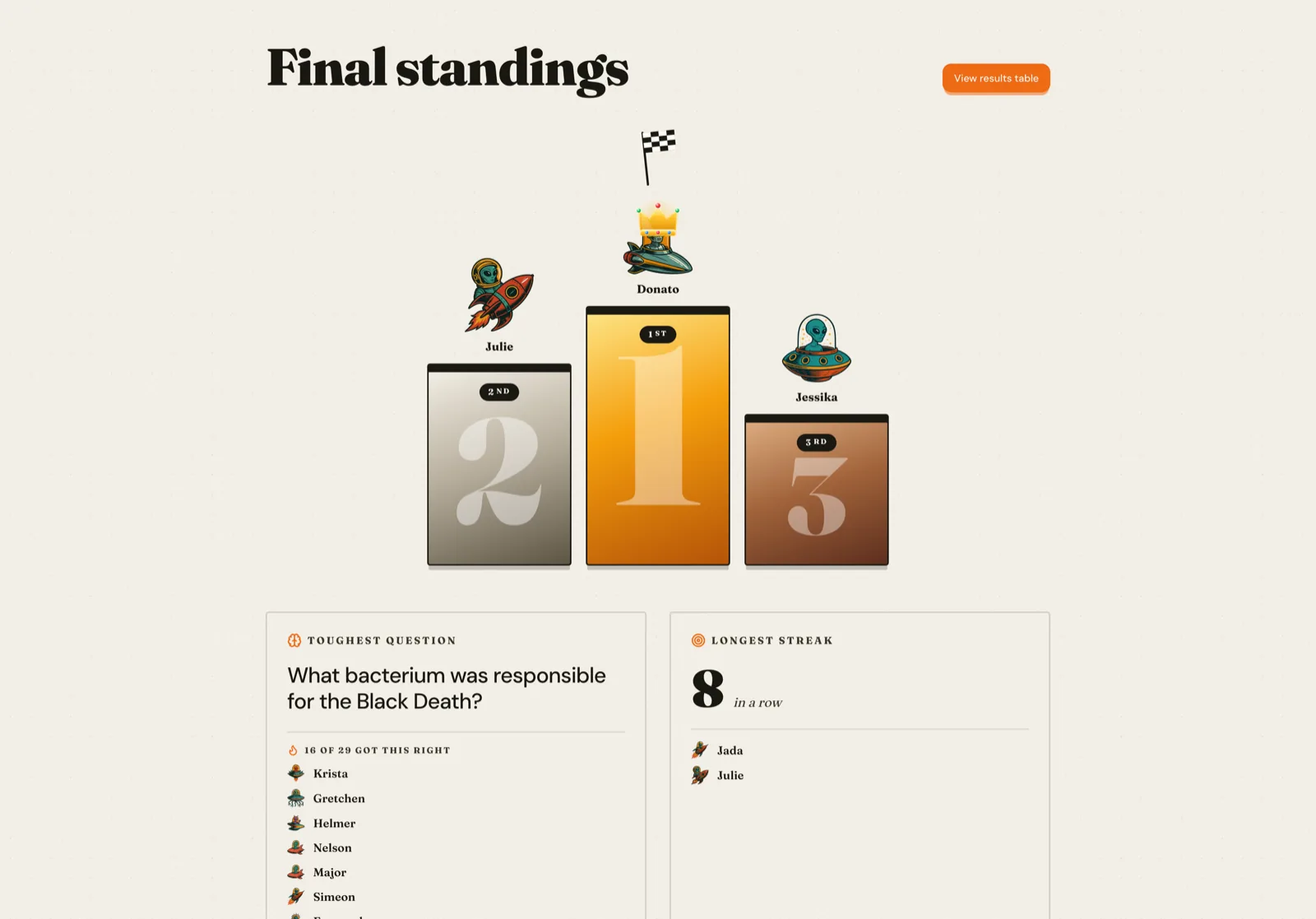
Click the view results button to see the winners and celebrate 🎉 This page will also show the question that students struggled with the most and who got the longest streak 🔥
Next click the "View results table" button to see a table of everyone's responses and you can discuss the questions as a class.
This shows a table of everyone's responses so you can get a quick understanding of what people struggled with and review the questions as a class.
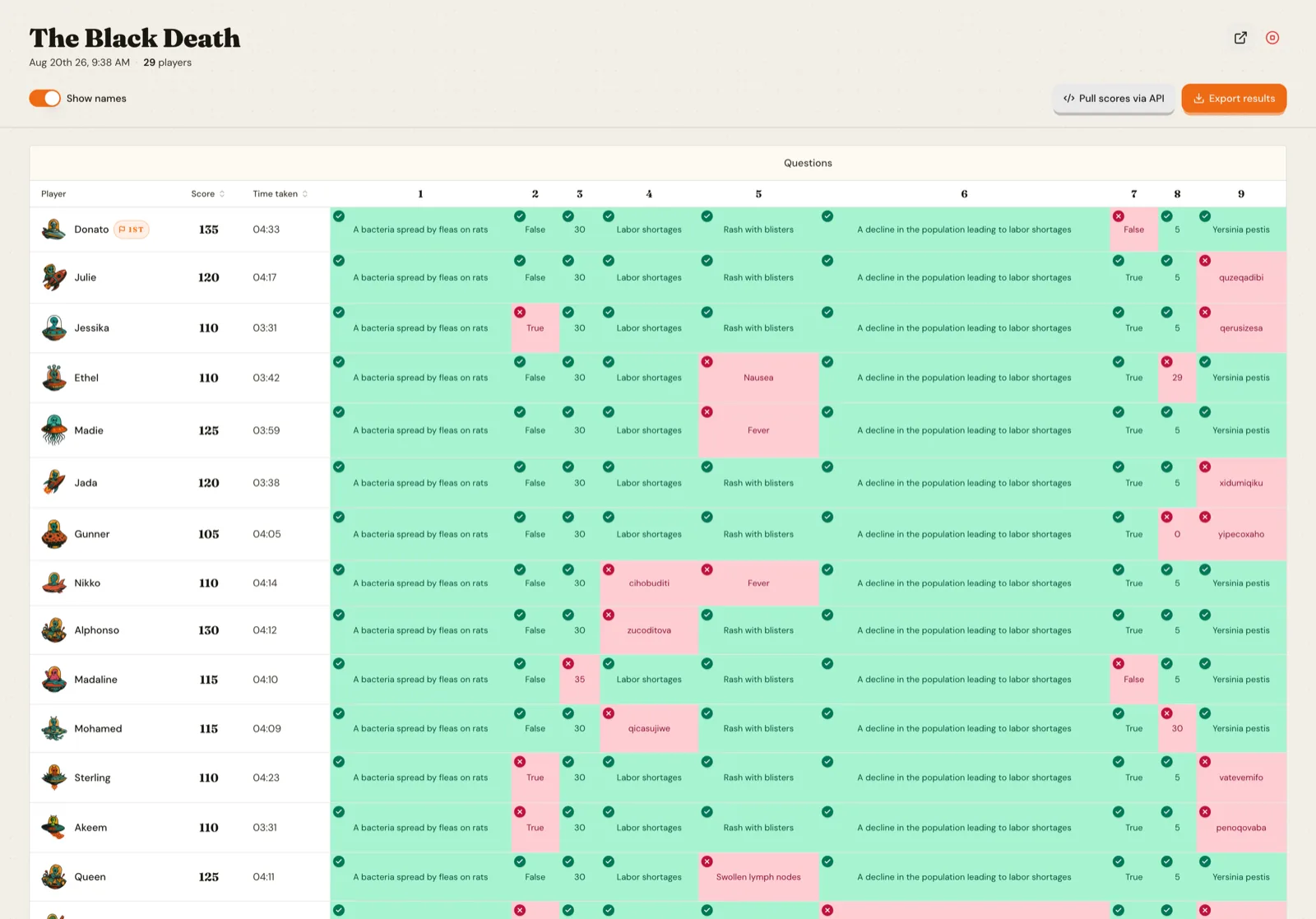
If you click on a cell, a pop up with the question will appear, giving the perfect opportunity to discuss the questions as a class.