
Getting Started
How to create a custom map
Maps are the race surface for your quiz. Players can race each other across one of the thousands of custom maps created by QuizWhizzer members. You can choose a map at the time of starting a quiz, or create your own.
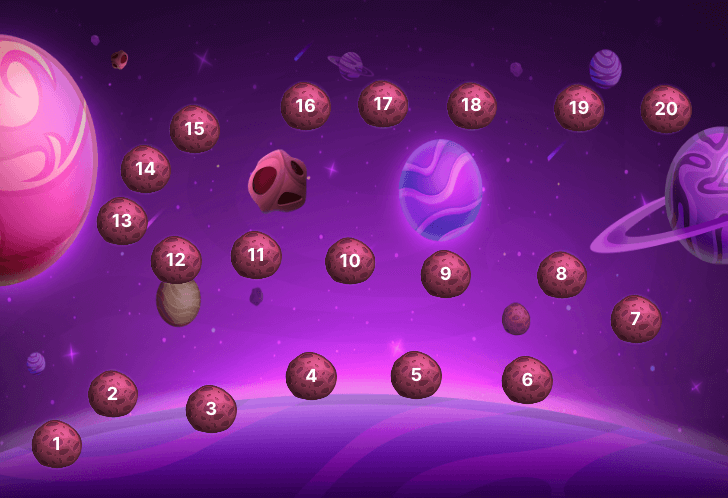
Below in an example of a map. They consist of a background image and numbered “spaces”. Spaces are just like in a board game. You move along a path of spaces, and your piece is always on one space, marking your position on the board. In QuizWhizzer, these digital “board games” are called maps.
The spaces can either be coloured circles or one of our graphical image spaces. In this example map, the spaces are meteors to fit with the space theme.
Choosing a map
Once you press the start button and have said how the game runs, you will be presented with a screen to choose a map.

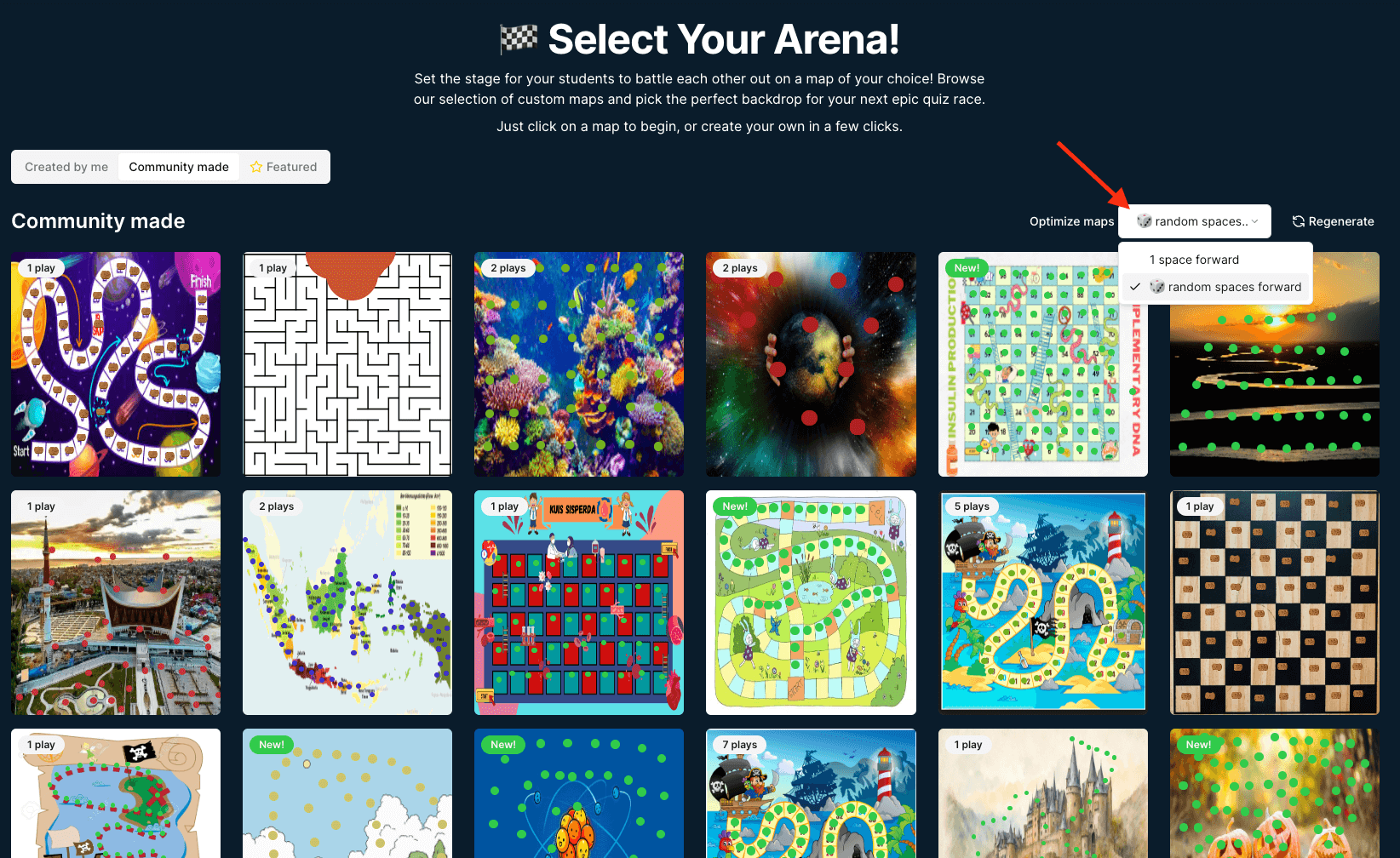
Community made maps
These are maps created by the QuizWhizzer community. This tab is smart as it will find maps optimized for the number of questions in your quiz based on the forward movement you choose. The Featured and Created by me tabs group maps the same way, so you can see at a glance which suit your quiz length.
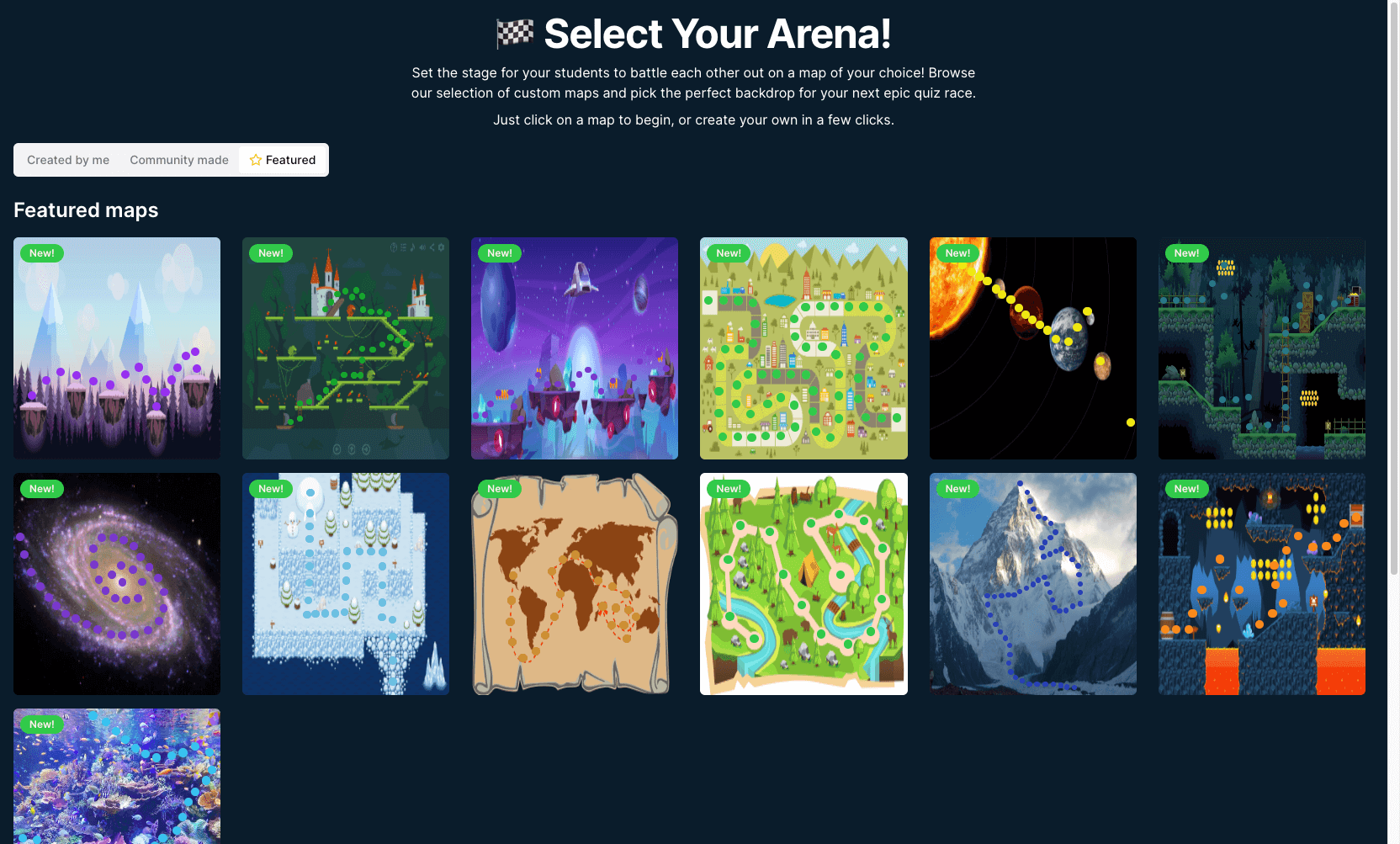
Featured maps
These maps are created by QuizWhizzer and usually are good for a variety of quizzes of different lengths. Keep an eye on this tab at Christmas and Halloween as we will add some special themed maps!
Create your own map
Want to create your own map? You can do it in only a few minutes with the map editor. Click the button on the “Created by me” tab to create your own:
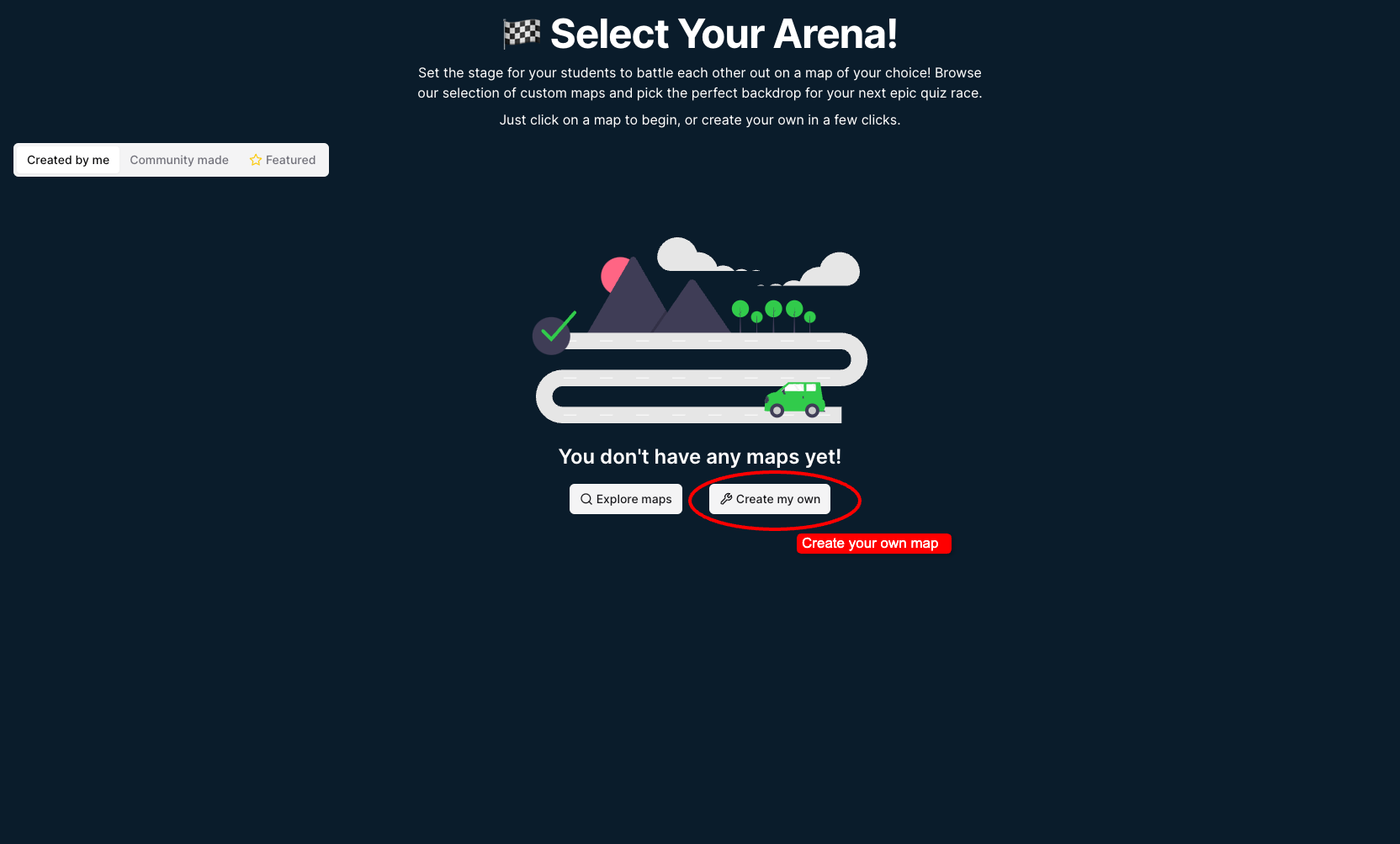
💡 You can also create a new map from your maps screen within the dashboard area.
The new map editor is super simple to use. First just add a background image, then click anywhere to add the spaces. You can click and drag them to reposition.
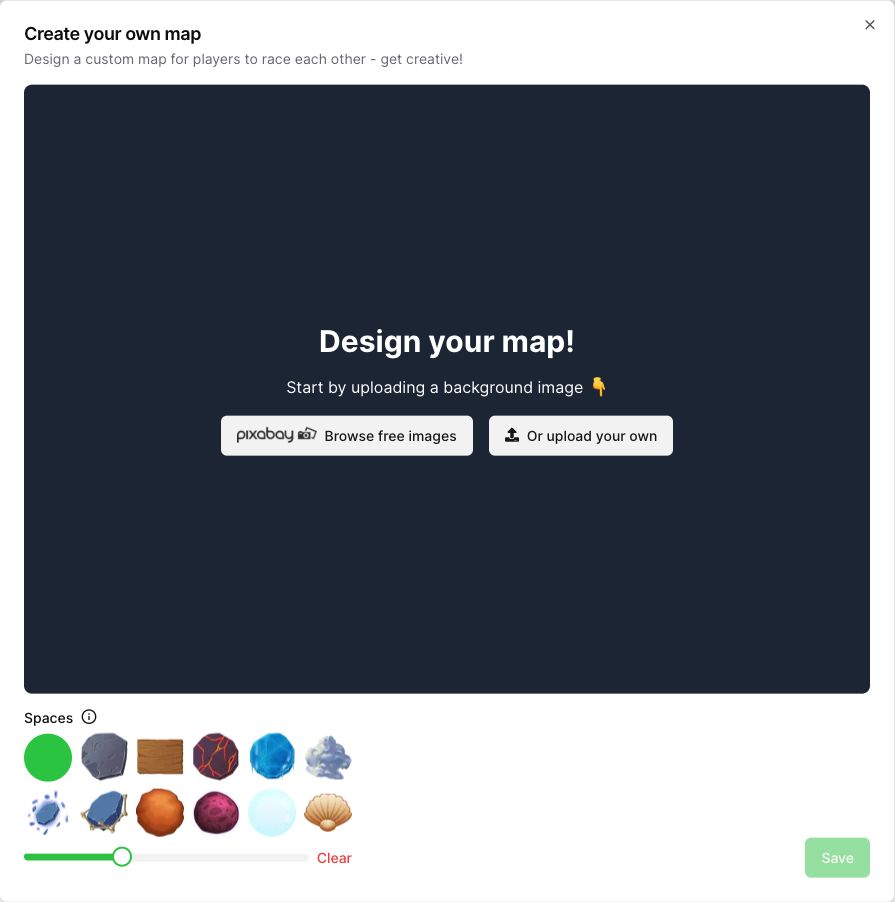
💡 What size should my background image be?
Use a landscape image, ideally around 16:9. 1920 x 1080 is a good default.
During the game your map is scaled to fill the height of the screen, with the width following the shape of your image. That means portrait or square images show up as a narrow strip with empty space either side, so landscape always looks best.
There is no need to go bigger than about 2560 pixels wide. It won't look any sharper on screen and it makes the map slower to load for your players.
At the bottom you can choose what kind of spaces you want to use (coloured circle or one of the graphical ones) and use the slider to change the size.
Teleport spaces
💡 Teleport spaces allow for even more exciting maps. For example, you can use these to create snakes and ladders games. Click here to try our snakes and ladders map!
Teleport spaces work like shortcuts. When a player lands on a teleport space, the next answer they get to a question will teleport them to a different space based on what you configure.
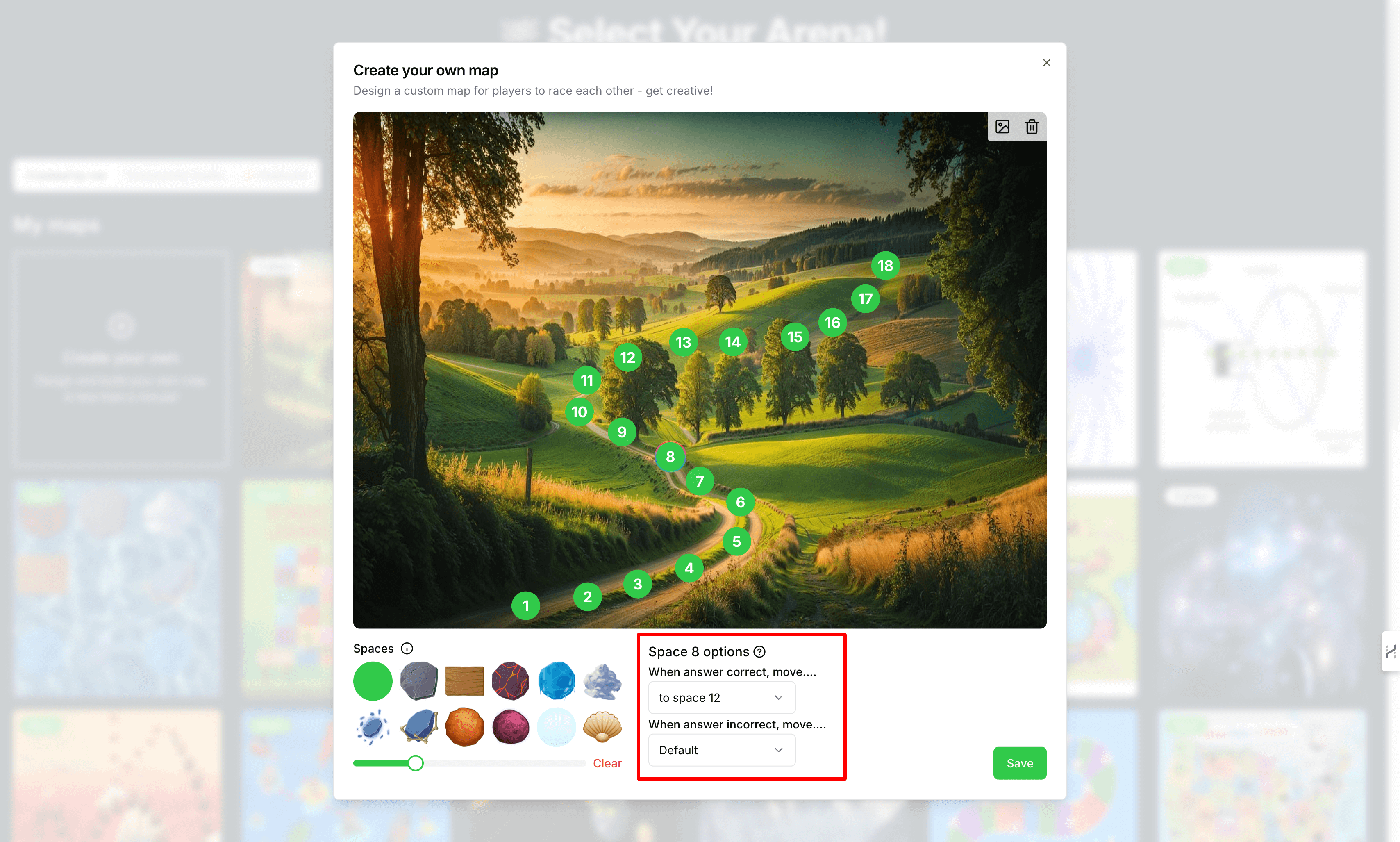
Right click on a space and then select “Options”. Then you can choose where the space will move the player to based on whether they get the question correct or not.