
Features
Presets
Tired of clicking through the same launch options every time you start a quiz? Presets let you save a setup you like and reuse it with one click.
Named presets are a Pro feature. On the free plan, QuizWhizzer still remembers your last settings — one set per game mode.
What a preset saves
A preset remembers how you like to start a game: the mode and the launch settings that go with it. Next time you play, pick the preset and you go straight to launch with everything already filled in.
Save a preset
- Open a quiz and click Start quiz / set up the game the way you usually would.
- On the launch screen, choose your mode and options.
- Under the Start game button, click Save as preset.
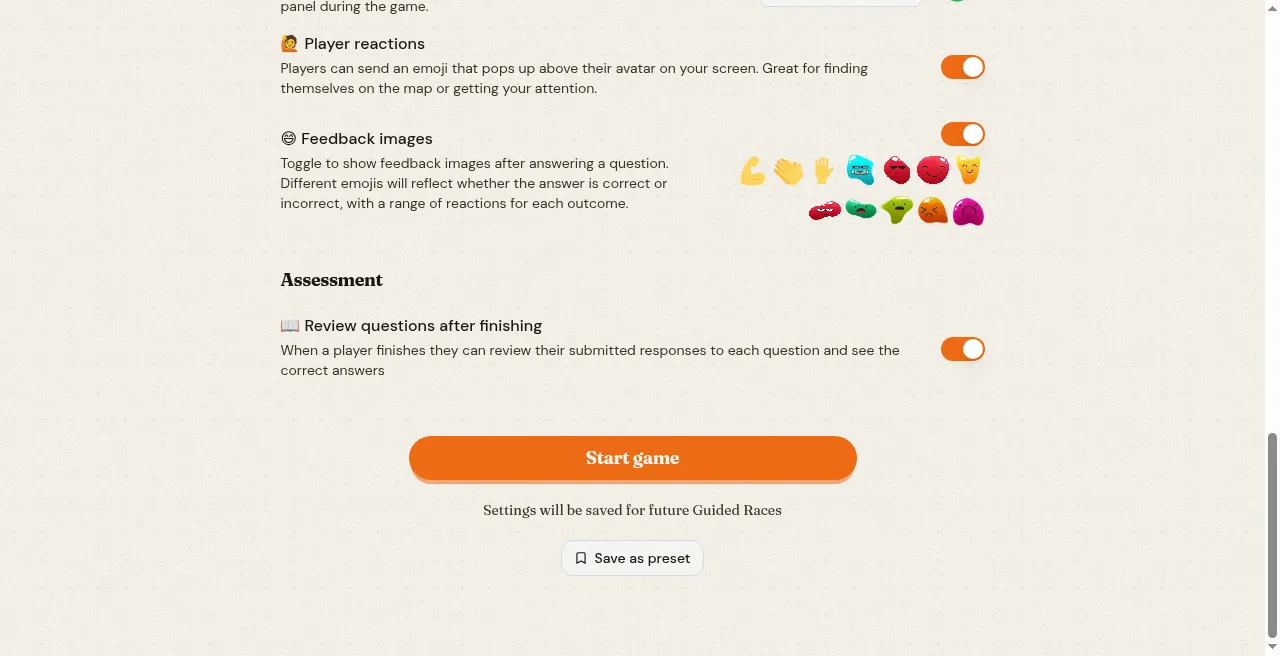
- In the Name this preset dialog, give it a clear name — like "Friday quiz race" or "Monday homework" — then click Save preset.
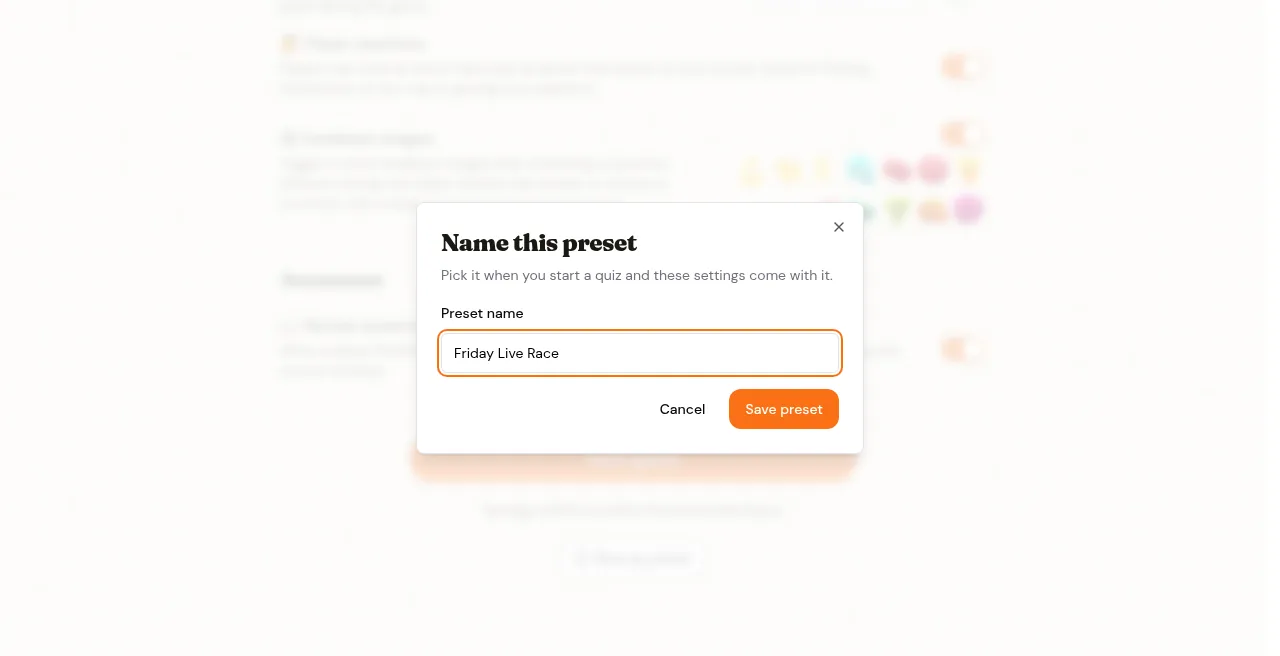
You're done. That setup is ready to reuse.
Use a saved preset
Next time you start a quiz, you'll see Start from a preset? Choose your saved preset (it also shows how that game runs, e.g. Host-paced · Highest score), or pick Start fresh if you want to set everything up again.
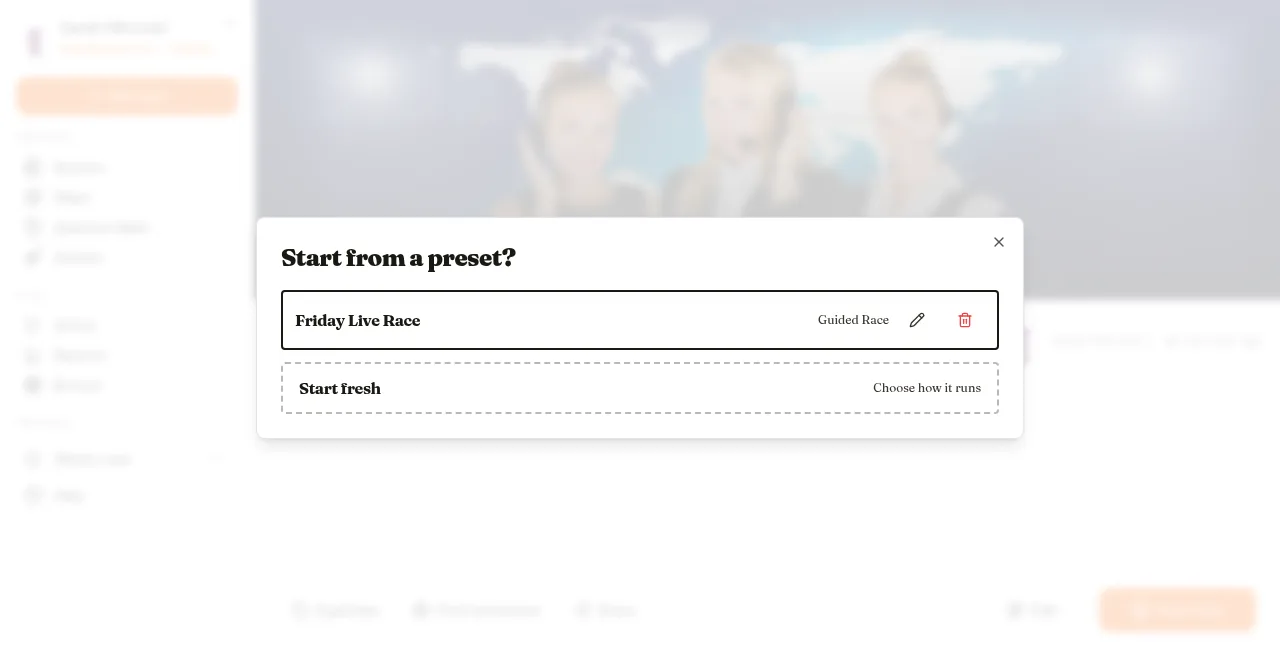
You'll land on launch with that mode and those settings already applied.
Update, rename, or delete
If you started from a preset and change the launch settings, you'll see:
- Update [preset name] — overwrite that preset with the current settings
- Save as new — keep the old preset and save these settings under a new name
On the Start from a preset? list, use the pencil icon to Rename a preset, or the trash icon to Delete one you no longer need.
For the full launch walkthrough, see How to play.
Share a launch link
A launch link lets someone else start a game with your preset, without a QuizWhizzer account. Useful when one person sets the quiz up and colleagues run the sessions: every game still runs under your account, so all the results land in your reports.
On the Start from a preset? list, click the link icon next to a live preset:
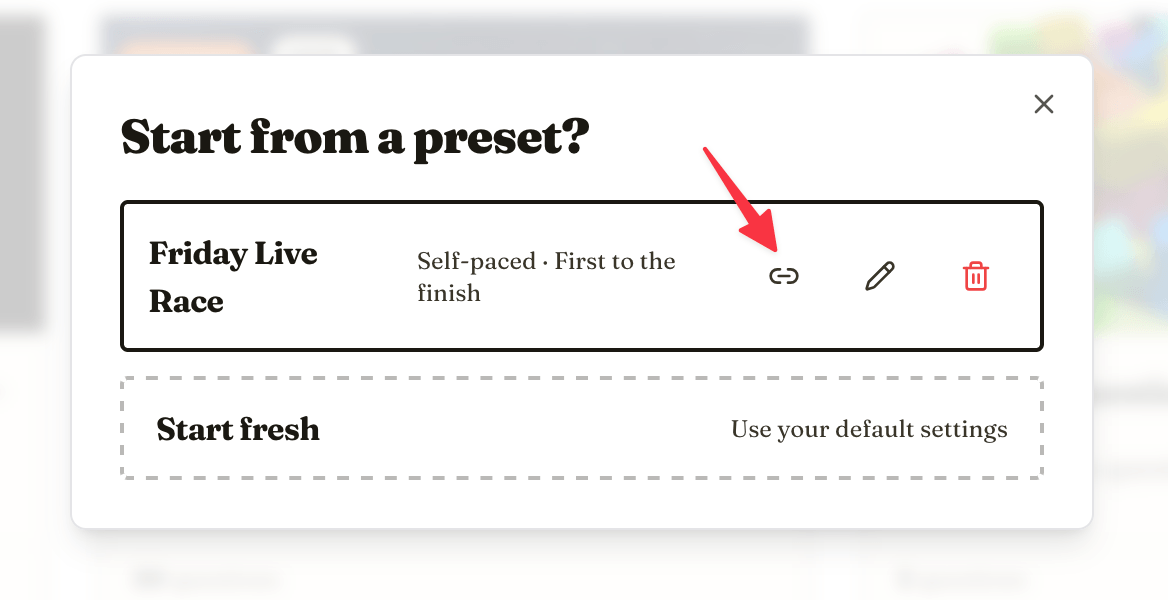
Choose when the link should expire, then click Create link. Copy the link and send it on.
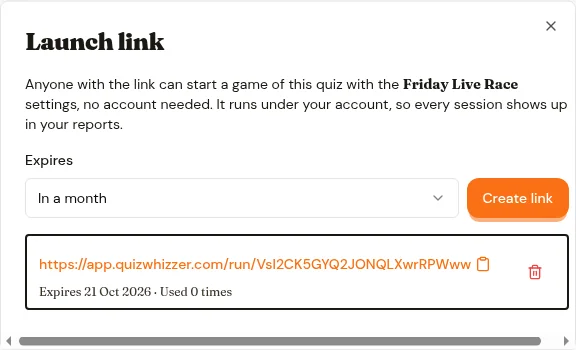
Whoever opens it types their name and gets a room code for their players. Their name becomes the game's name, so on Active Games you can tell whose session is whose. Links play on the quiz's map, so set one in the quiz settings first.
To stop a link working, open the same dialog and click the trash icon next to it. Games already running carry on. Launch links are for live games, not homework.
Settings are remembered per mode
Even without named presets, your settings are remembered separately for each mode:
- Self-paced, won on the finish line or on score
- Host-paced, won on the finish line or on score
- Homework
Turning something off for a live game no longer changes it for your homework. The launch screen tells you what you're setting up (for example, "Settings will be saved for future host-paced · highest score games").
Give a quiz its own map
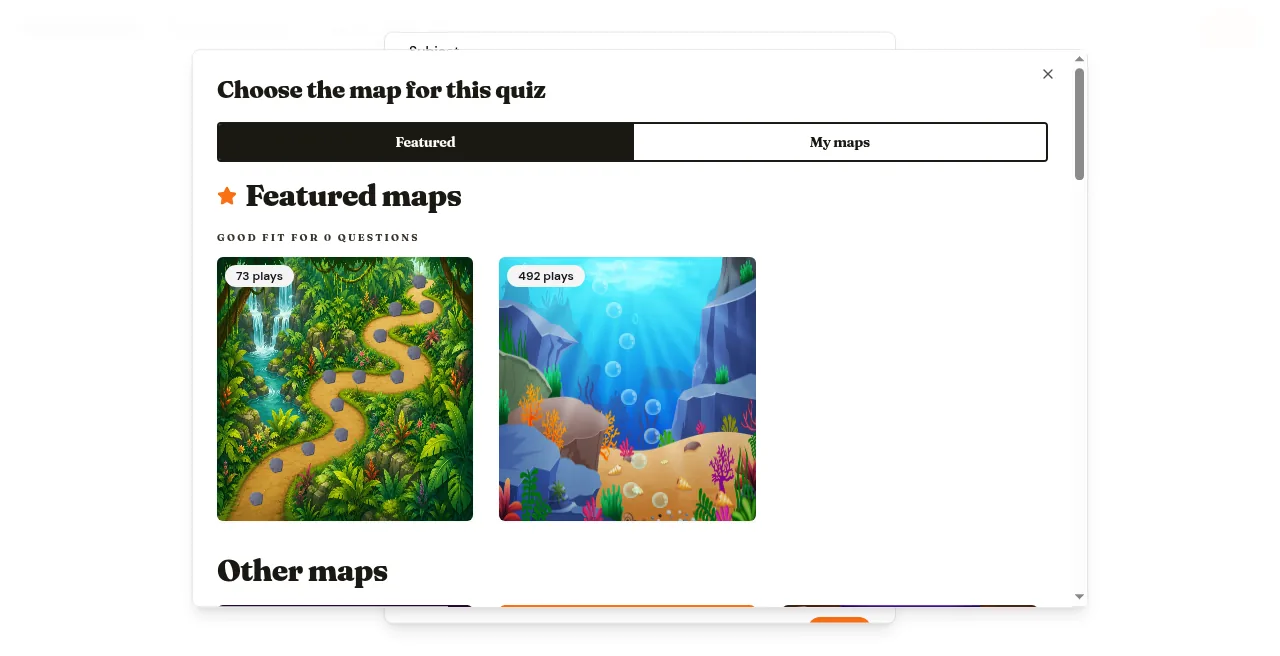
Related to launch setup: you can now pick a default map for a quiz instead of choosing one every time you play it.
- You'll be asked after you Publish (Choose the map for this quiz)
- You can change it any time from the quiz's settings
- When you host, you can still switch to a different map for a single game
Name presets after how you actually teach — "Bell ringer race", "Exit ticket homework" — so the right one is obvious when you're about to start class.