
Getting Started
How to create a quiz
A QuizWhizzer game has two parts: the quiz and the map. This article walks through making the quiz. For maps, see how to create a custom map.
Start a new quiz
Open the side menu and click + New quiz.
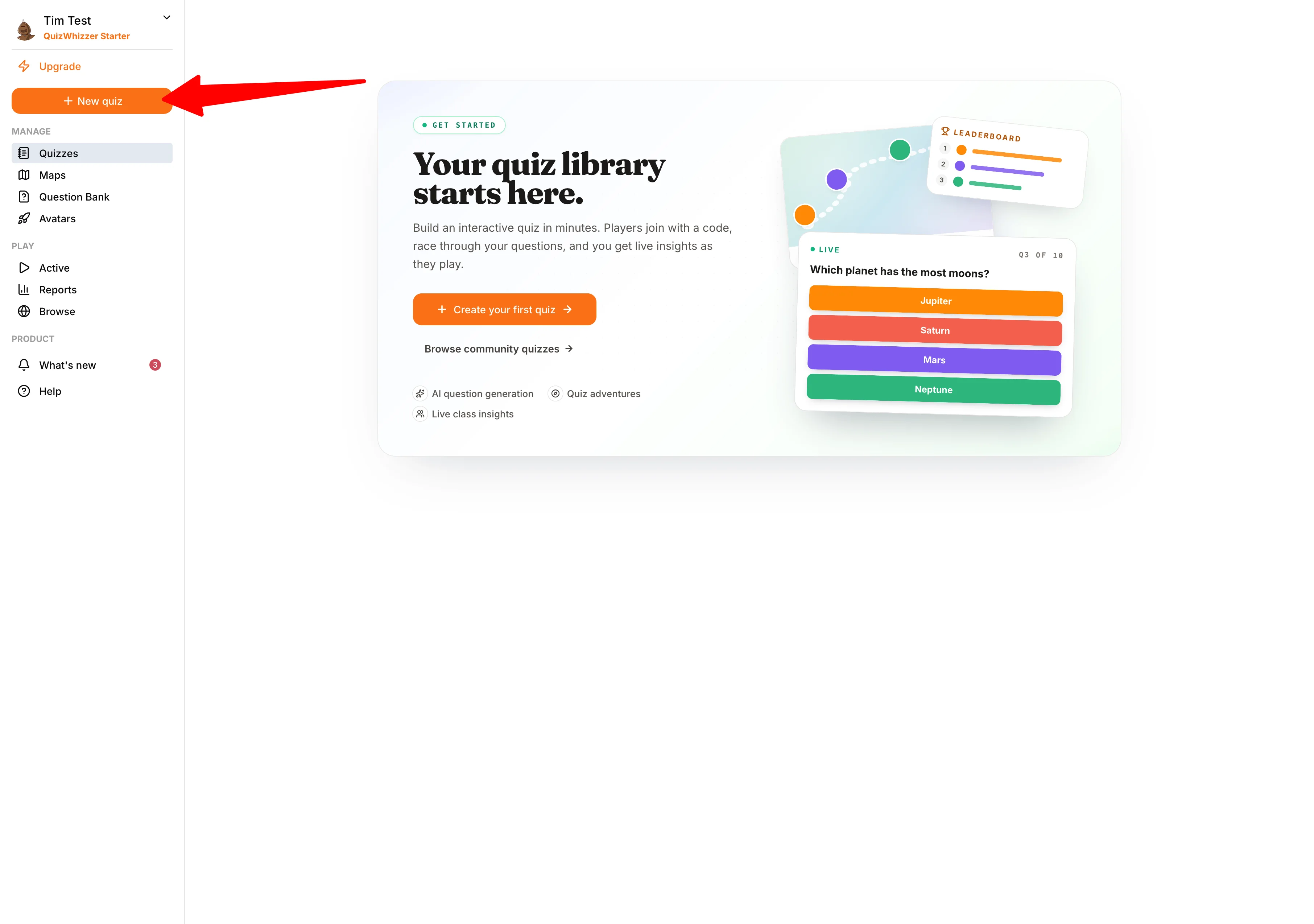
This drops you into a short setup wizard that asks just the essentials. You can fill in the rest (description, cover photo, public/private, practice link) later from the quiz settings.
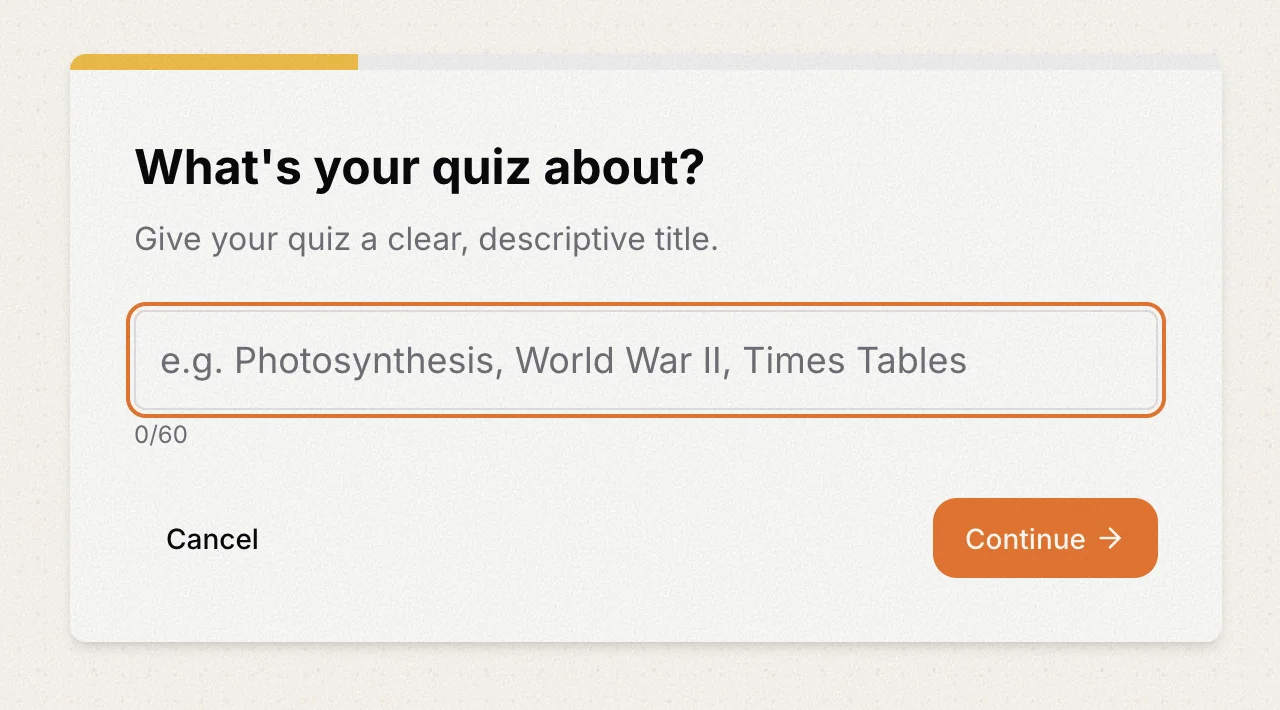
Step 1: Title
Type a name for your quiz and click Continue. Keep it under 60 characters.
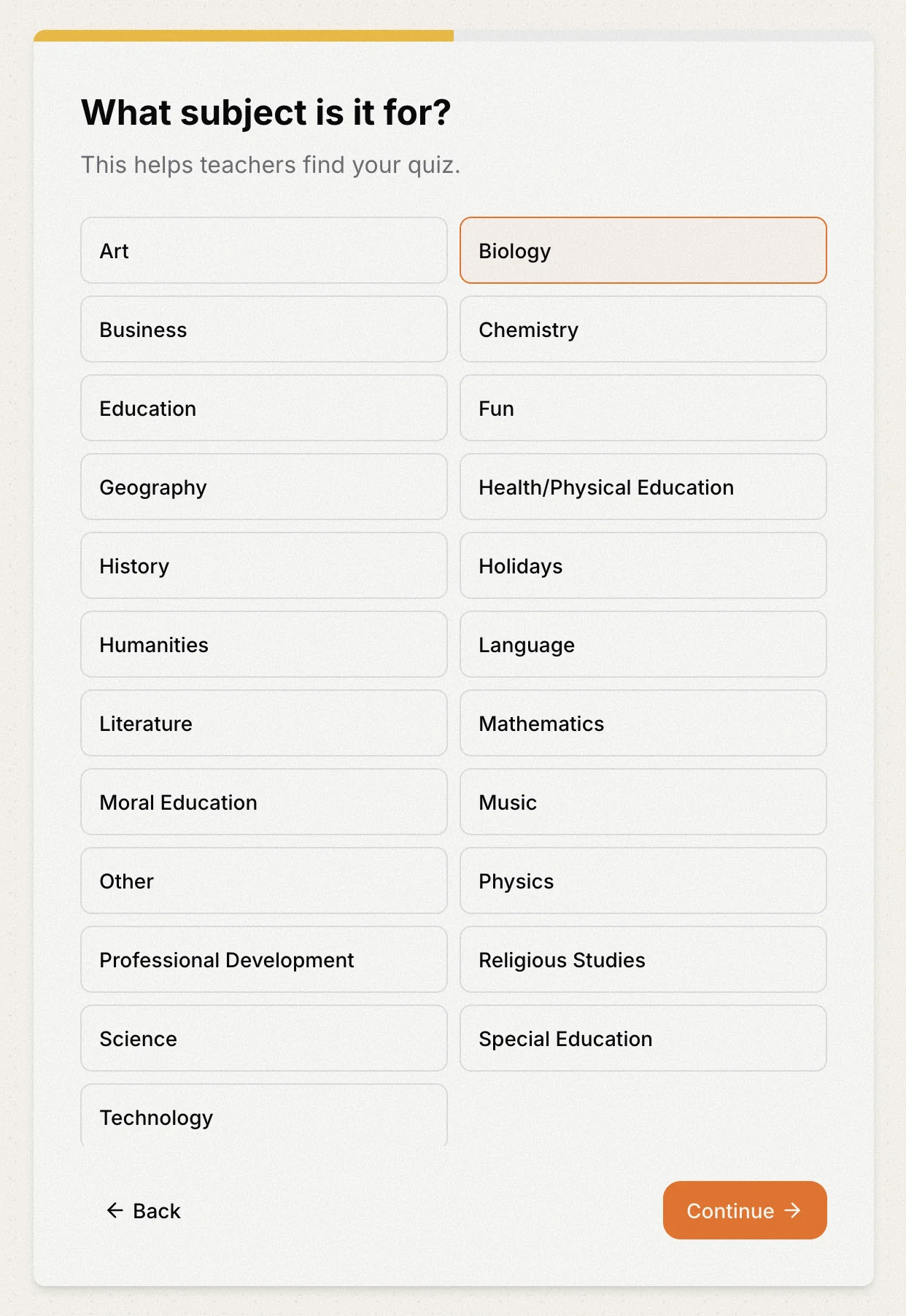
Step 2: Subject
Pick the subject that fits best. One click moves you on.
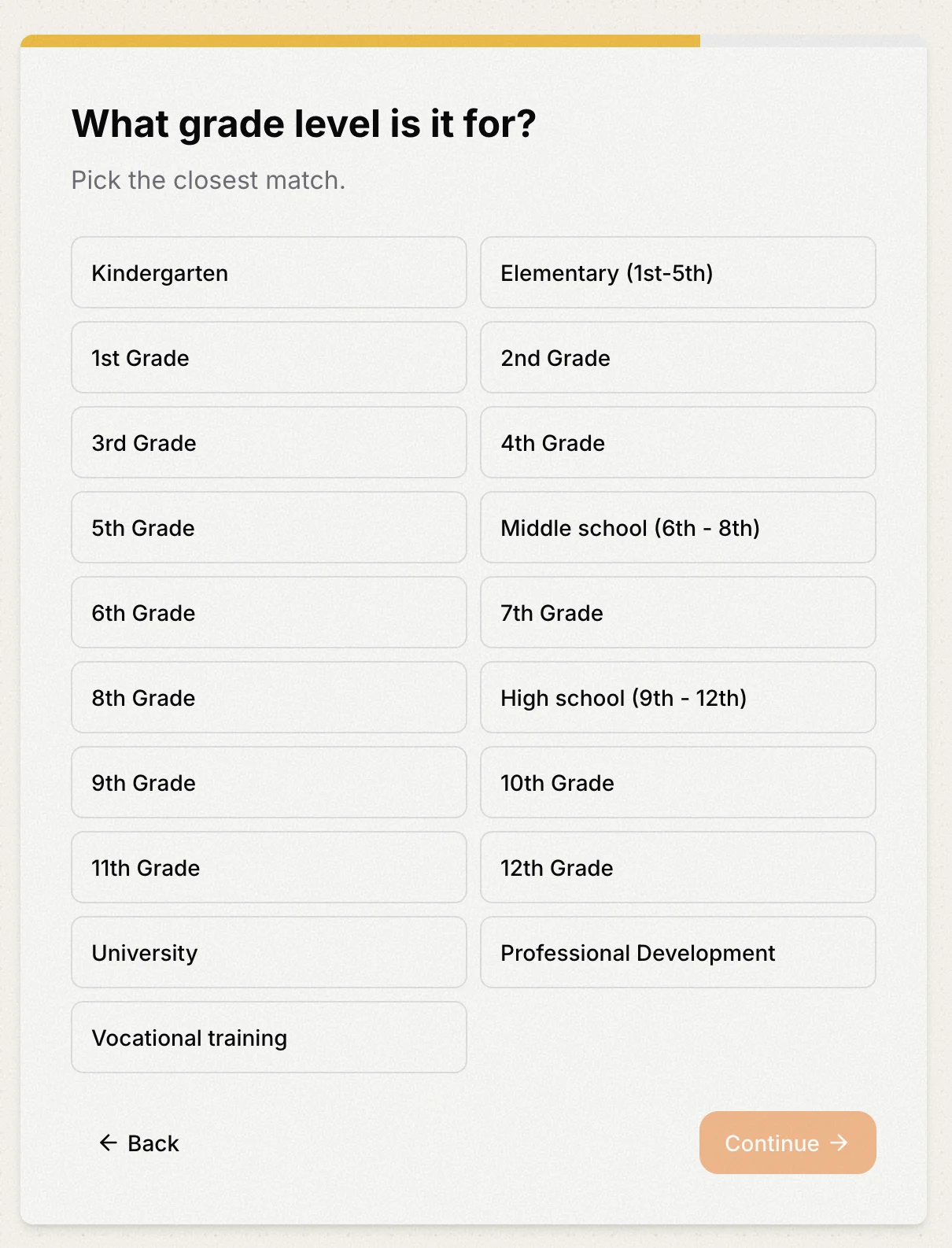
Step 3: Grade level
Pick the closest grade level. You can change it later if you need to.
Step 4: Language
If we haven't seen your default language yet, you'll get a quick language step. We try to guess it from your title; confirm or change. After this, your default is remembered and the language step is skipped next time.
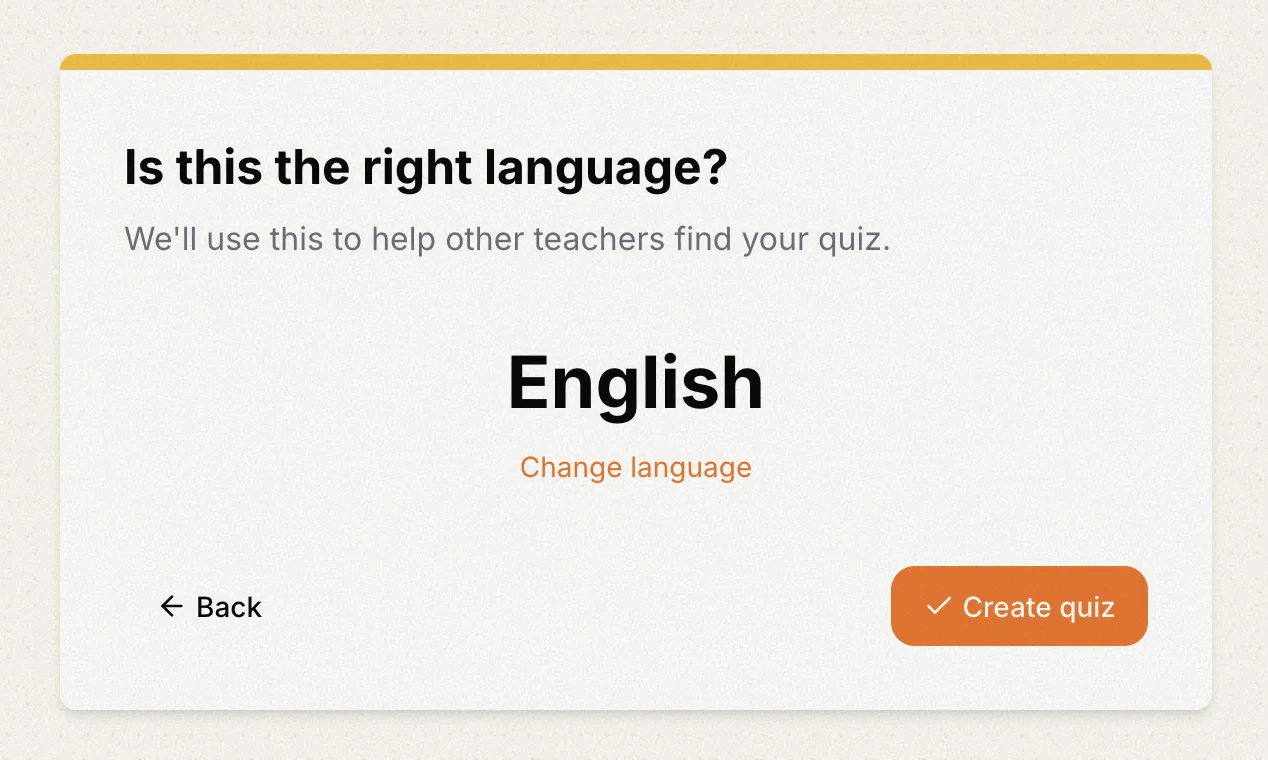
After the final step you'll get a quick confetti moment and land in the question editor.
Adding questions
The editor opens with a few ways to get going:
- Add question to write one yourself
- Add slide to insert a non-question slide
- Generate with AI to have AI draft questions from a topic (learn more)
- From spreadsheet to upload your own (guide)
- From bank to pull from your Question Bank
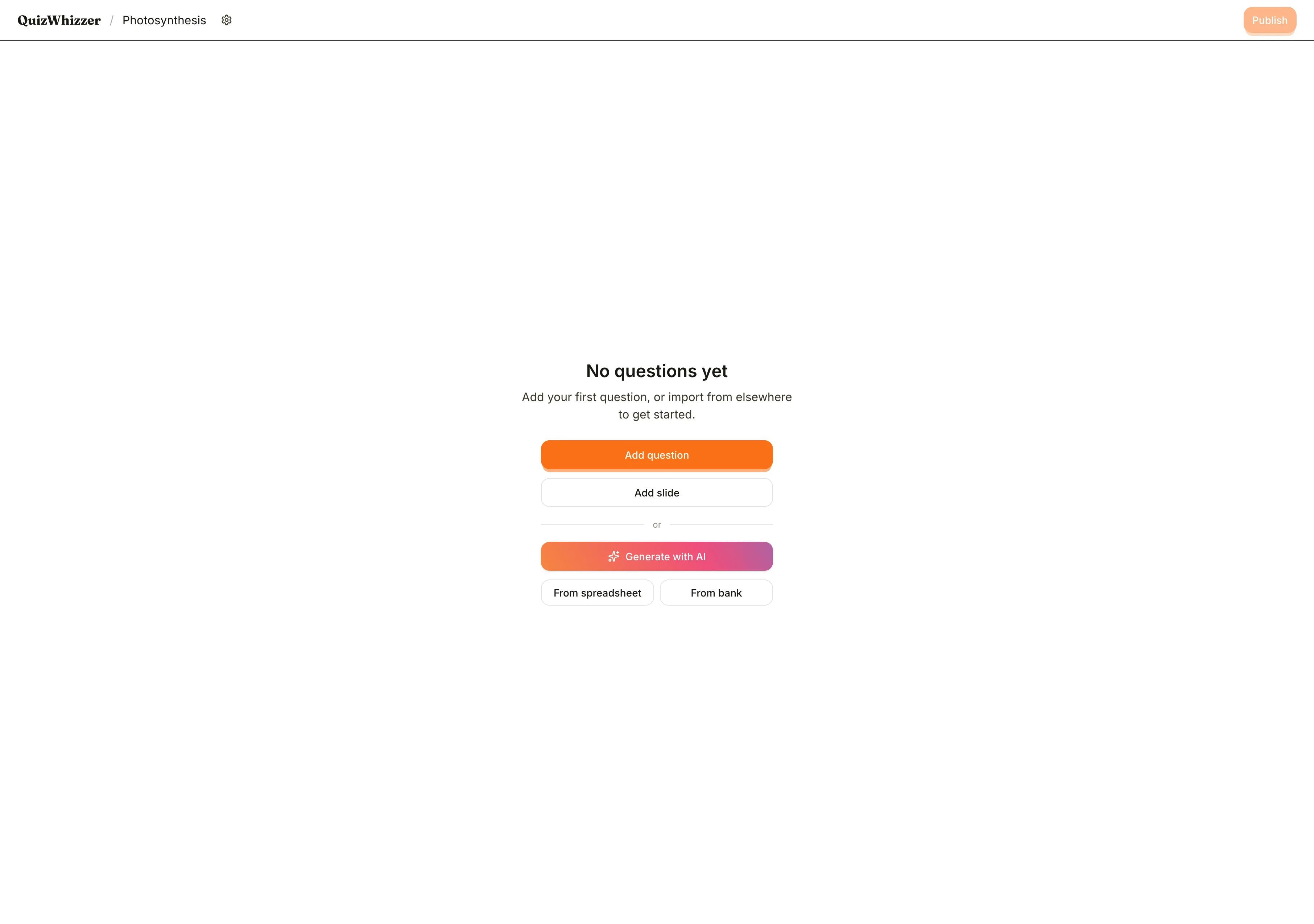
Pick whichever fits. You can mix sources in the same quiz.
The question editor
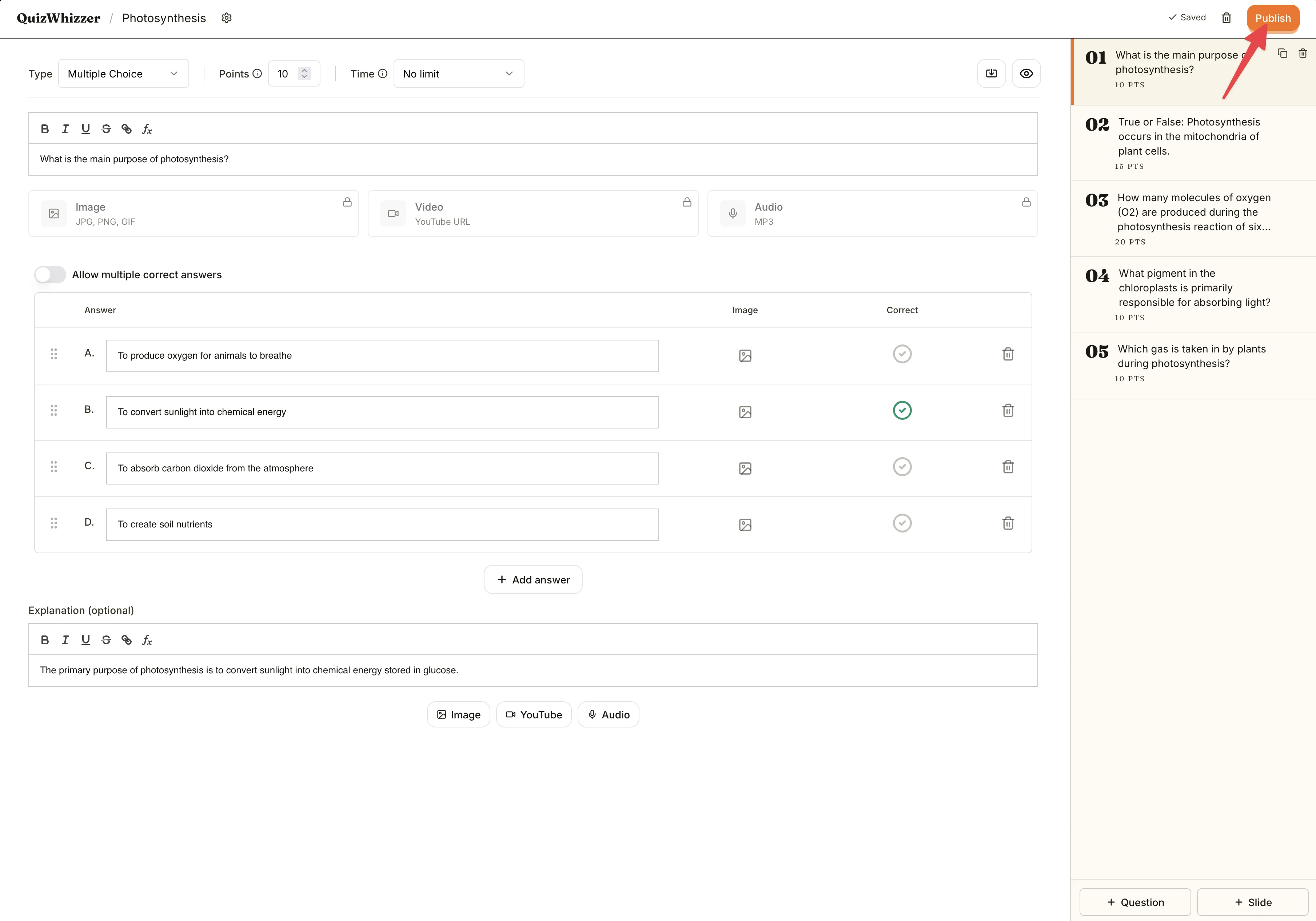
Once you have at least one question, the editor shows that question in the main pane and a list of all your questions on the side.
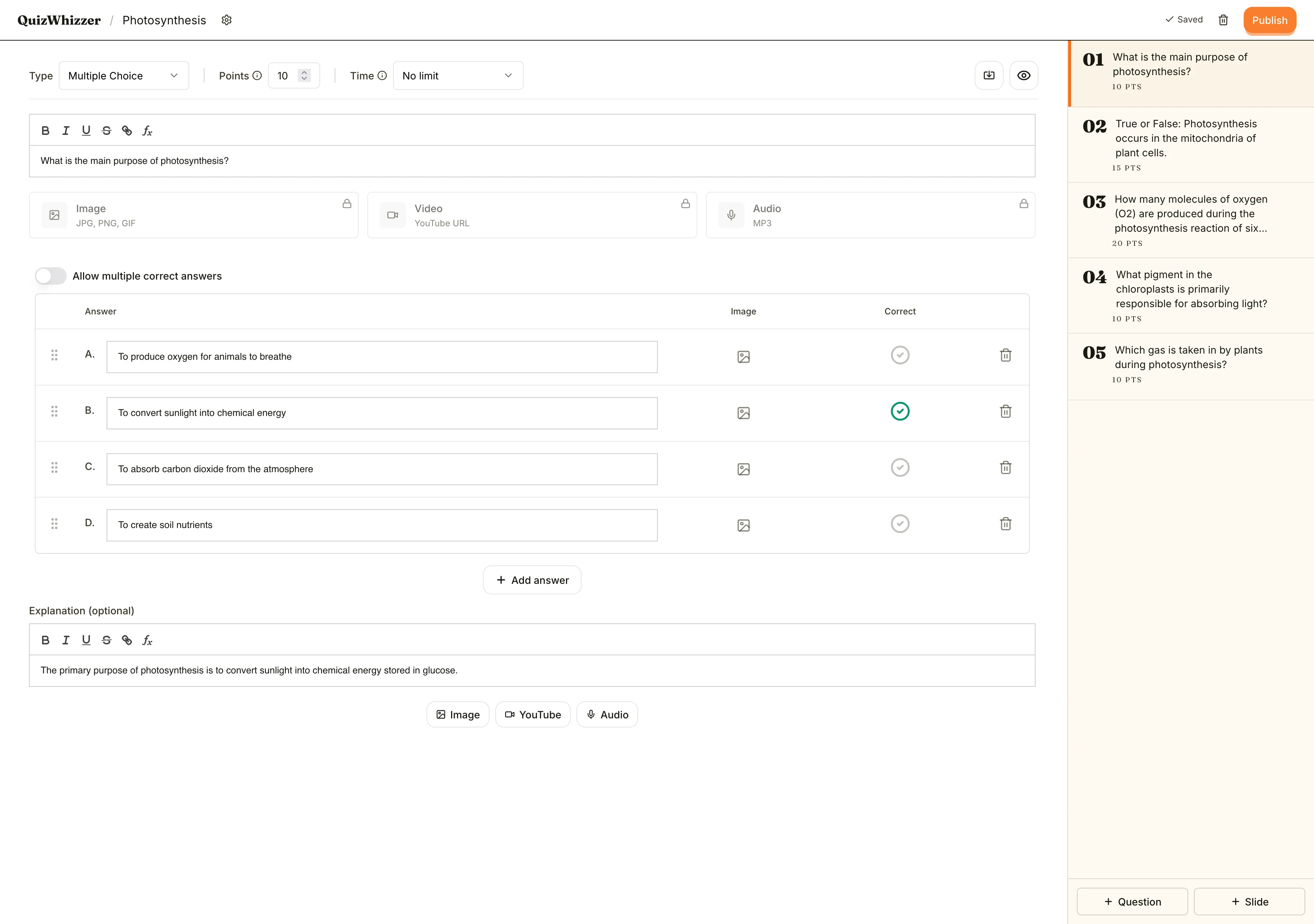
Along the top of the question pane you can:
- Choose the question type (all types here)
- Set the points for the question
- Set a time limit (optional)
- Preview what the player will see (eye icon)
- Import another question from your Question Bank or generate one with AI (icon button)
Below the question text are buttons to attach an image, video, or audio clip. You can add one of each per question.
Below the answers, you can write an explanation that's shown after a player submits. Whether it's shown in-game is a setting you choose when you start the game.

Reordering, duplicating, deleting
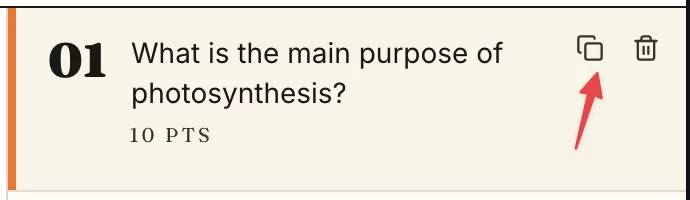
On the question list, drag a card to reorder. Each card has buttons to duplicate or delete.
Quiz settings
Click the gear icon at the top left of the editor to open quiz settings. From here you can:
- Add a description and cover photo
- Set the quiz to public or private (private requires a paid plan)
- Turn on practice mode so students can play in their own time via a permanent link
- Update the subject, grade, or language
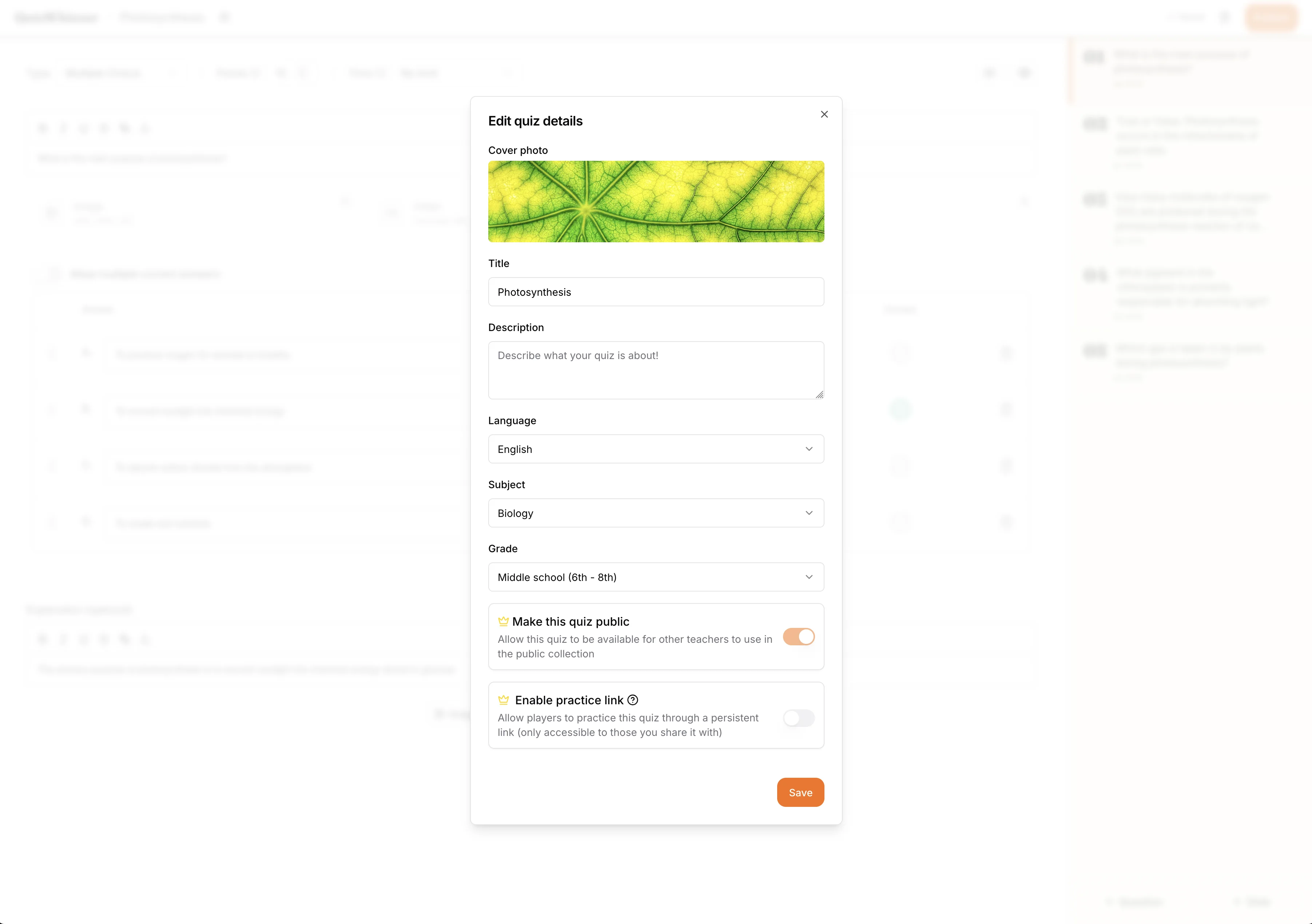
Remember to save the settings dialog before closing it. The save button sits at the bottom, so you may need to scroll.
Publish
When you're happy, hit Publish at the top right. That's it, your first quiz is live.
👉 Ready to make a custom map to go with your quiz? Check out the maps guide.